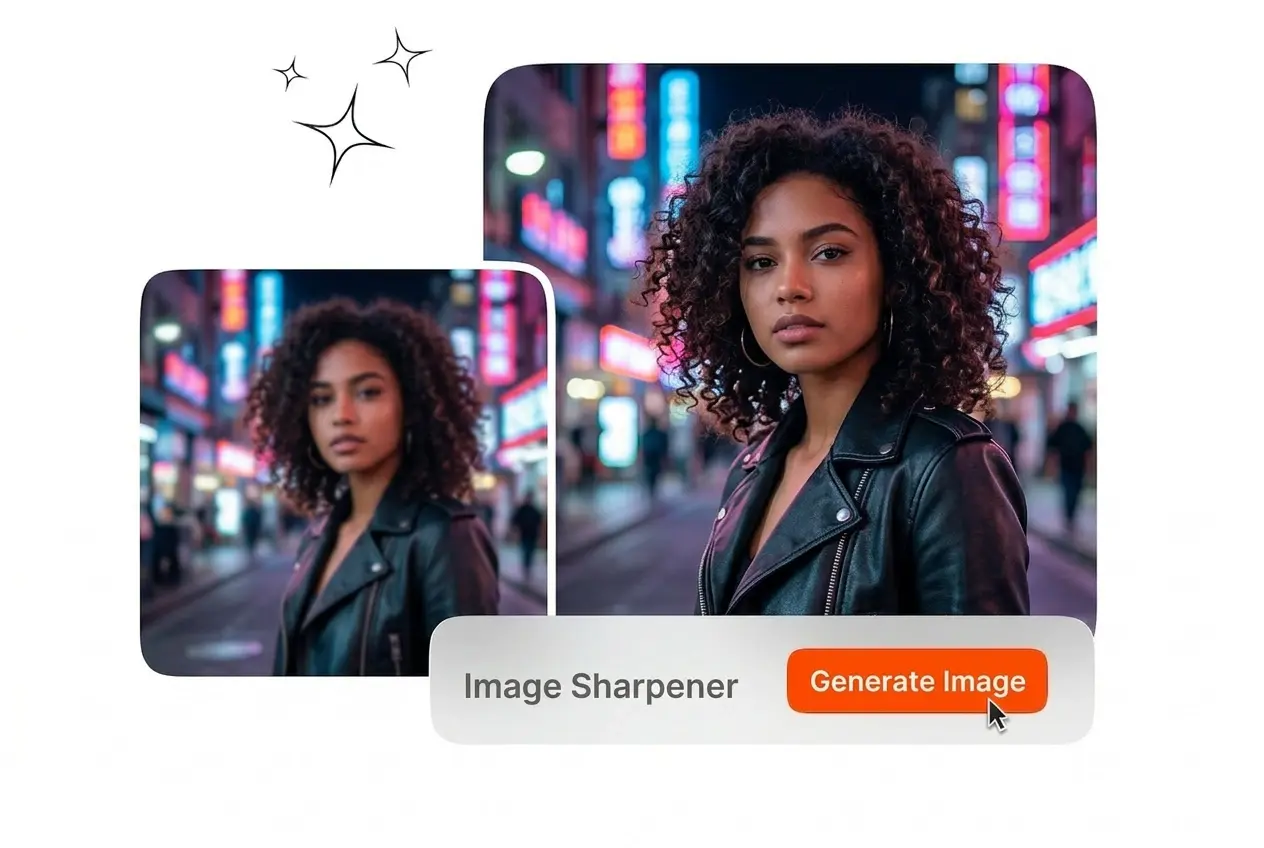
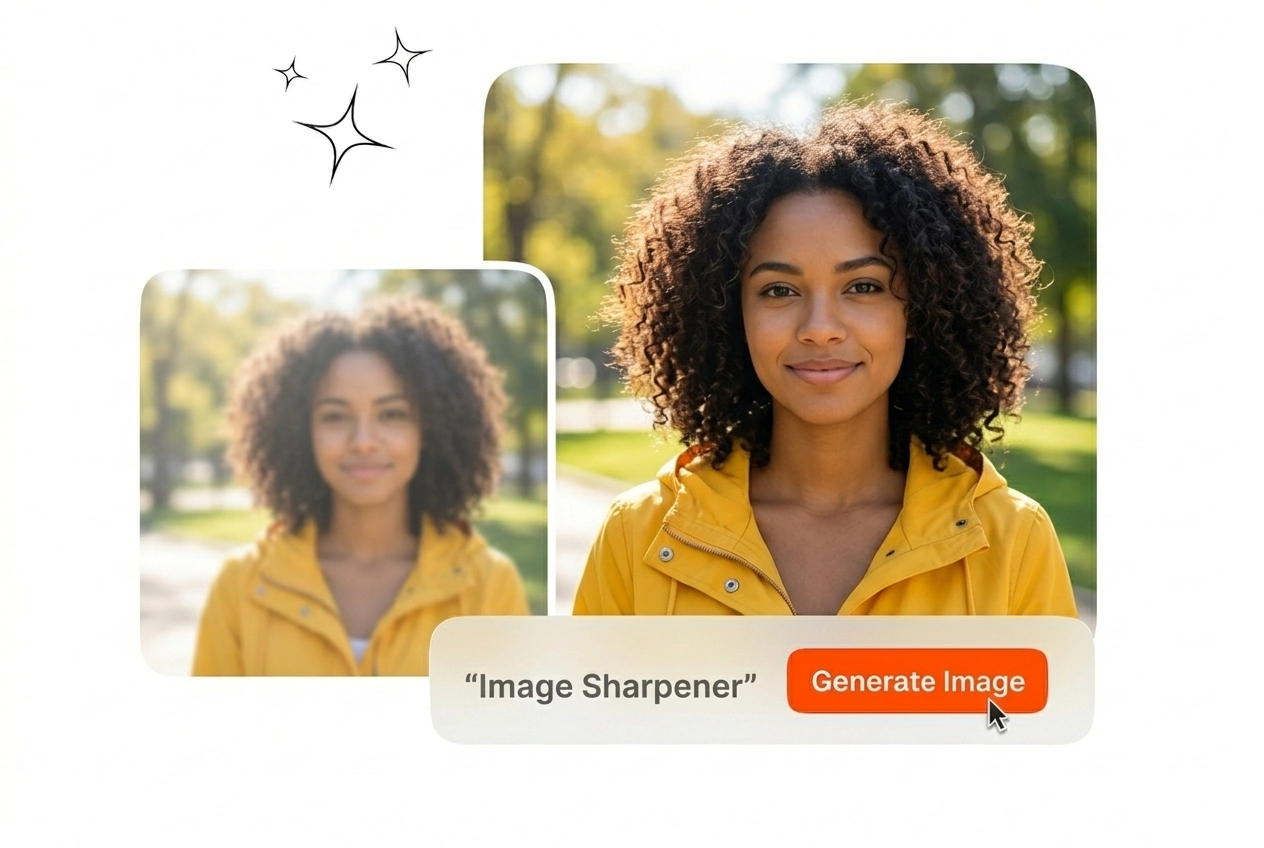

Free Image Sharpener
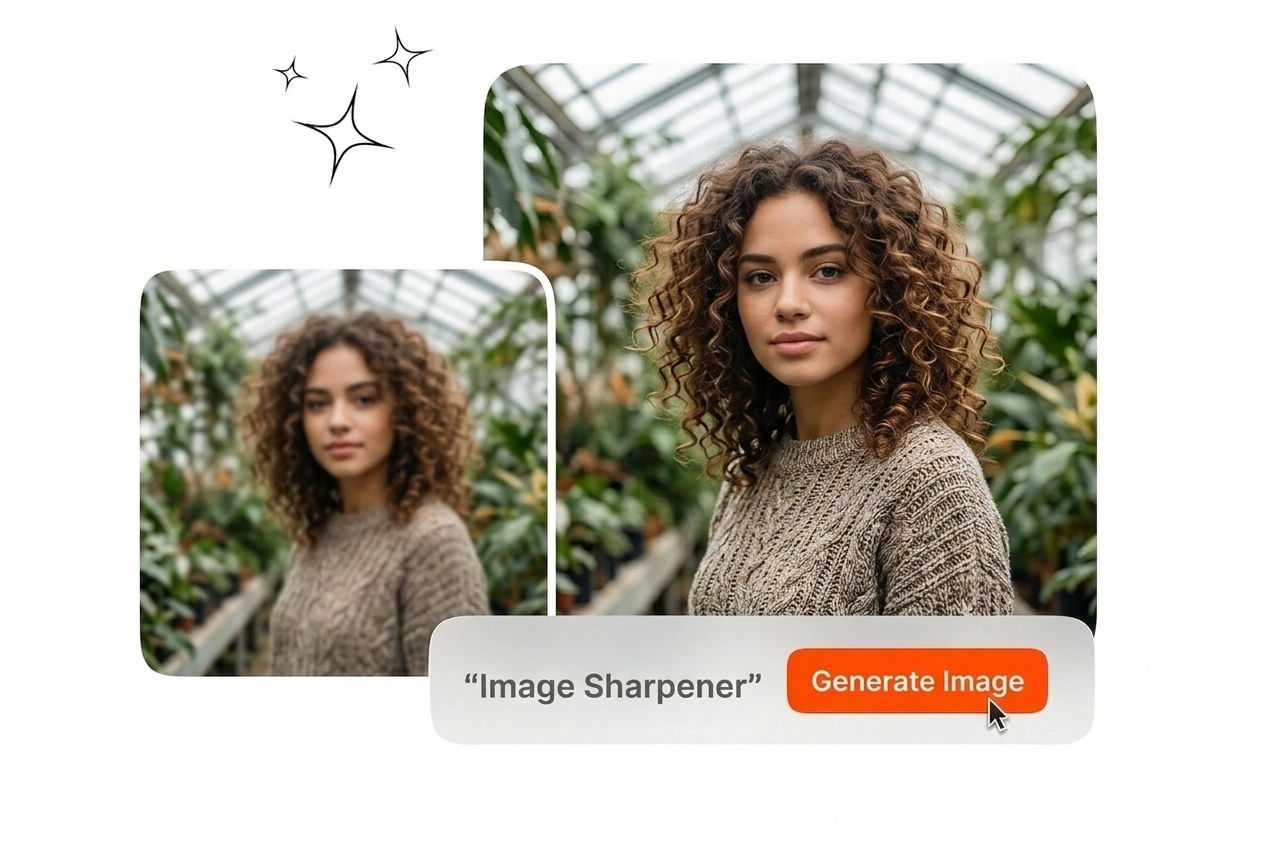
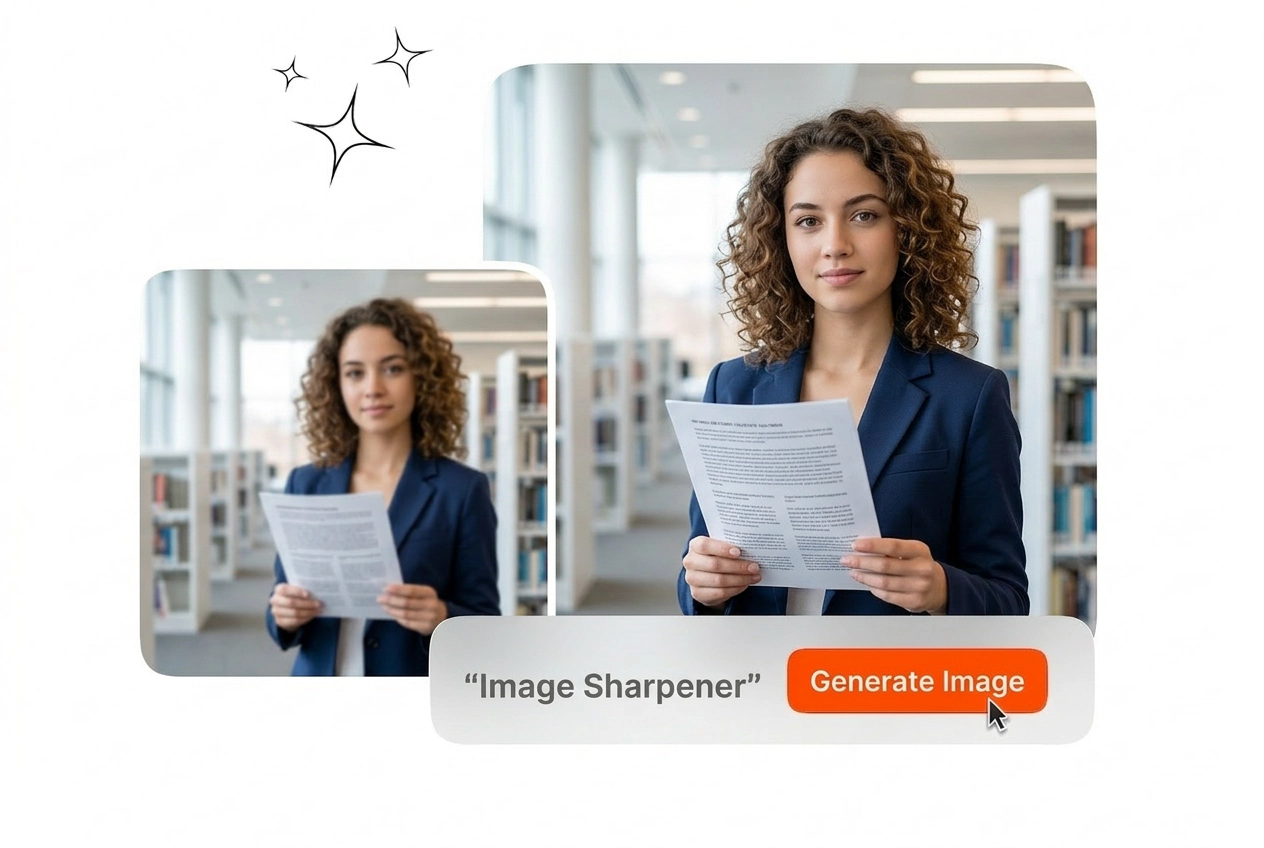
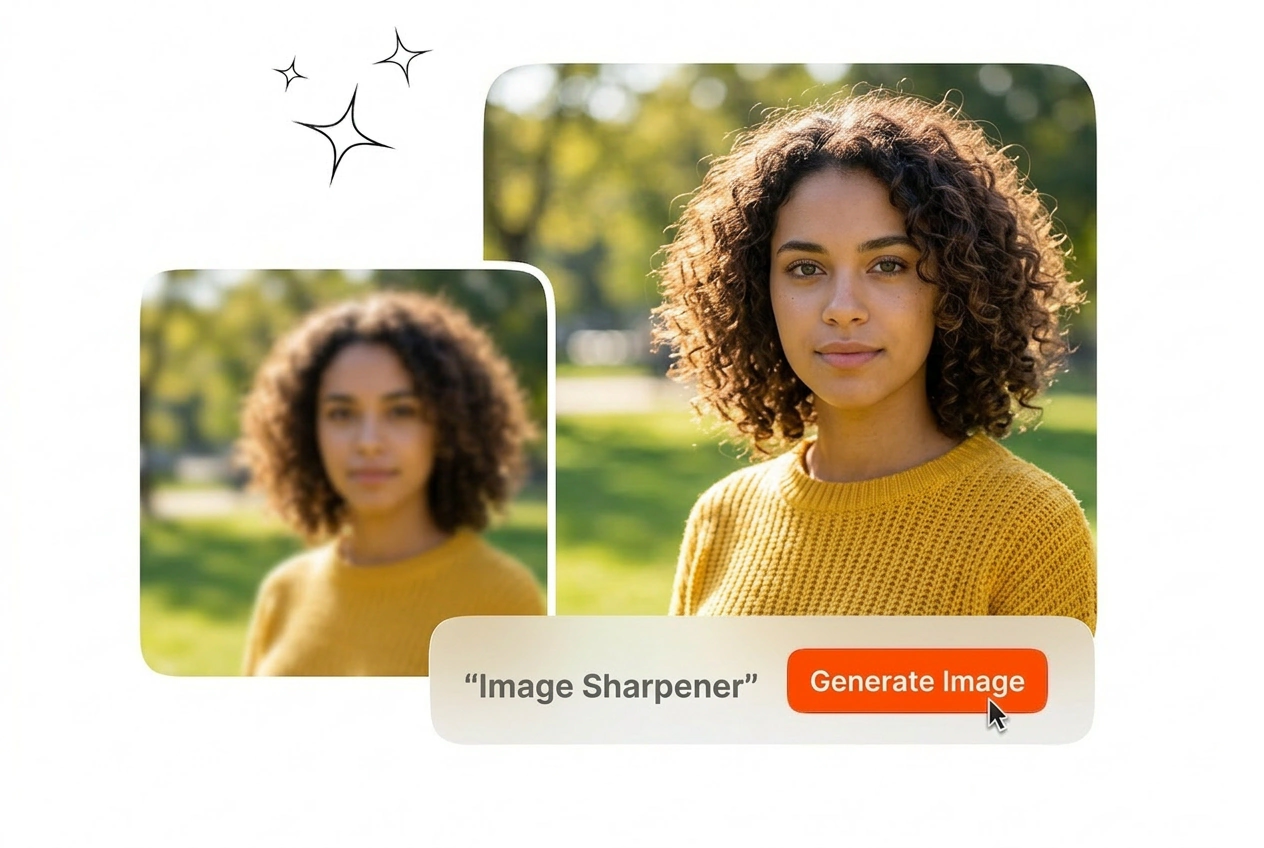
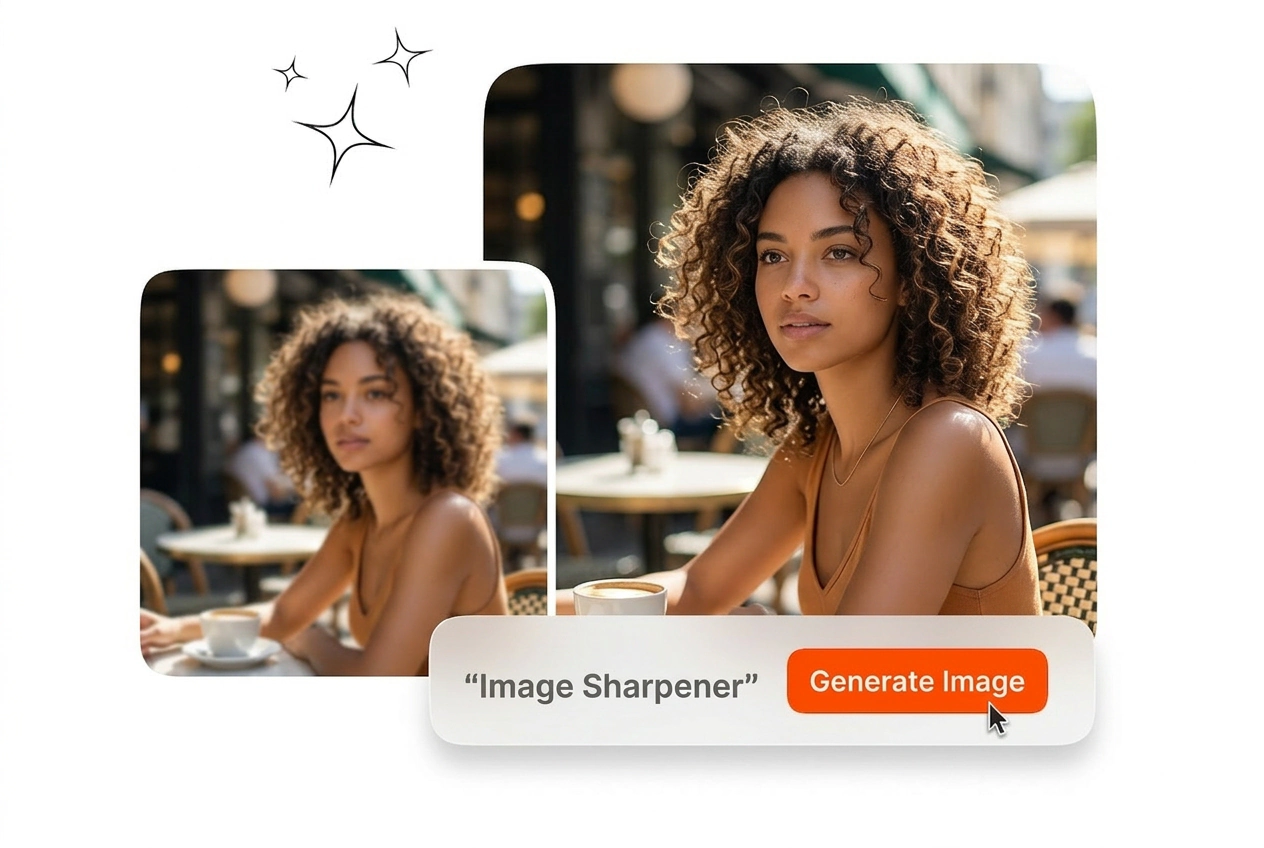
Fix blurry photo files instantly with this reliable Image Sharpener. Upload your reference image and export a crisp, clear version in seconds.

Professional Image Sharpener for Clear Output
Upload your blurry reference image and export a crisp file. This Image Sharpener restores focus and refines edge details instantly.

Professionals rely on this Image Sharpener to fix focus issues. Upload your reference image and export a clean, usable file.

Product photos often lose sharpness during compression. Upload your catalog files to this Image Sharpener to restore fine textures. Export clear product shots that help customers see exact material details before they make a purchase decision.
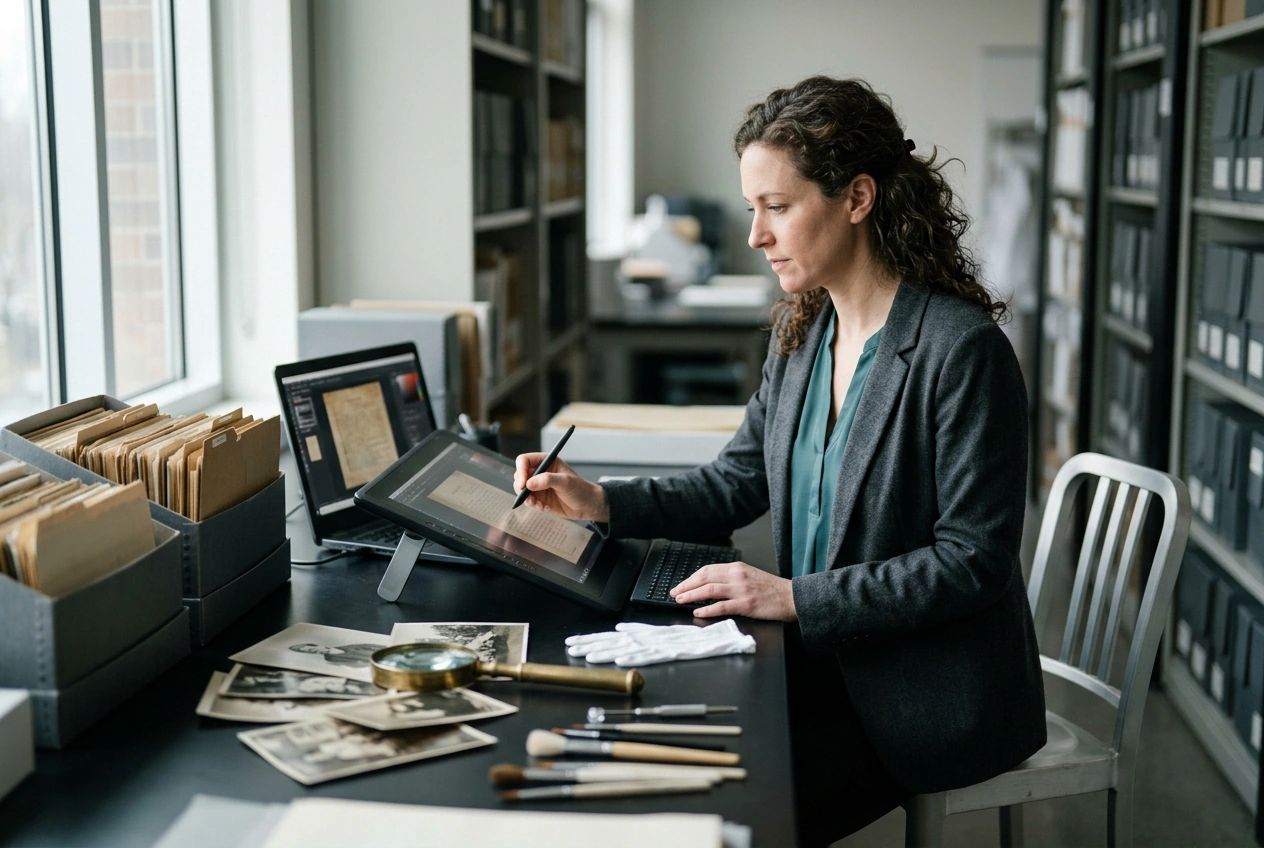

Scanned historical documents and old photographs frequently suffer from soft focus. You can sharpen blurry image online free to recover illegible text. Export a crisp digital record that preserves the original information accurately for future reference.

Presentation slides and software screenshots often look blurry on large screens. Use this Image Sharpener to clear up blurry image files before your session. Export sharp diagrams that keep your audience focused on the actual training material.
How the Image Sharpener Works
Execute three steps to fix blurry photo files. Upload your reference image to the Image Sharpener, adjust the clarity settings, and export the result.
Step 1
Upload Reference Image
Select your blurry or out-of-focus file and load it into the workspace. The system accepts standard formats and prepares the image for precise edge detection and immediate detail recovery processing.
Step 2
Apply Sharpening Filter
Click the enhance button to let the AI identify textures and edges. The tool processes the visual data to remove blur completely without adding artificial noise or unwanted light halos.
Step 3
Export Clear File
Review the corrected image in the preview window to confirm the restored details. Click export to download your crisp file at its original resolution, ready for your immediate professional distribution.
Core Image Sharpener Capabilities
Our Image Sharpener targets specific focus errors and texture loss. Review these capabilities to understand exactly how the tool processes your files.

Natural Edge Recognition
Standard filters often create harsh lines and digital noise. This AI Image Sharpener identifies actual object boundaries and fine textures. You get a crisp result that looks naturally focused rather than artificially edited by basic software.

Text Detail Recovery
Low-resolution screenshots and scanned documents often contain illegible text. You can use our free Image Sharpener online to restore the readability of small fonts. Export a clean file where every single letter and number remains clearly visible.

Focus Error Correction
Camera shake and missed focus ruin otherwise usable photographs. Use this Image Sharpener and AI image enhancer to realign the visual data and correct the blur. Save time by rescuing existing shots instead of scheduling a reshoot.

Browser-Based Processing
Complex desktop software requires installation and manual parameter adjustments. You can use our Image Sharpener online directly in your browser with a single click. Get immediate results without learning complicated editing workflows or managing heavy local applications.
Image Sharpener Common Questions
How can I sharpen an image online to fix a blurry photo?
Upload your blurry photo and run the Image Sharpener to recover edges and textures. Results depend on the input: mild blur and compression artifacts sharpen best, while extreme motion blur may stay soft. Export the clearer file for catalogs, slides, or web assets.
How do I clear up blurry image text in screenshots?
Use the Image Sharpener on the screenshot and focus on increasing clarity until letters regain clean strokes. If the source text is only a few pixels tall, the tool cannot invent missing characters, so keep expectations realistic. Export the crispest version for presentations and documentation.
Does an AI Image Sharpener work well to sharpen JPG files?
Yes, it can still help on JPG files, but heavily compressed images may show blocky artifacts after sharpening. Start with a moderate pass to avoid halos and noise around edges. If you also need more pixels, upscale first, then sharpen for a cleaner final export.
How can I sharpen a photo online for free without a watermark?
You can sharpen photos online and export clean results without branding overlays in typical workflows. If you process a large volume of files, rendering may take longer depending on server load. This makes it practical to deliver sharp, client-ready assets from a browser session.
When should I use an Image Sharpener versus enlarging photos?
Use an Image Sharpener when the image is the right size but looks soft, slightly out of focus, or compressed. Use an upscaler when you must increase resolution for print or large screens, then sharpen afterward for the cleanest edges. This order avoids amplifying blur while enlarging.
Upload your soft reference image and let the tool restore the missing details. Export a crisp, professional file in seconds for your project.