


AI Video Generator
Turn A Still Into A Clip
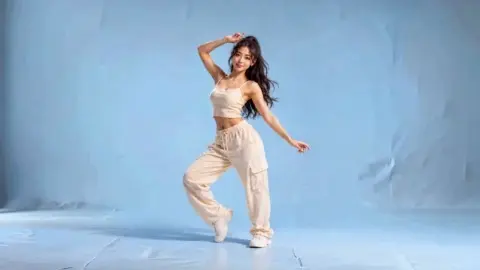
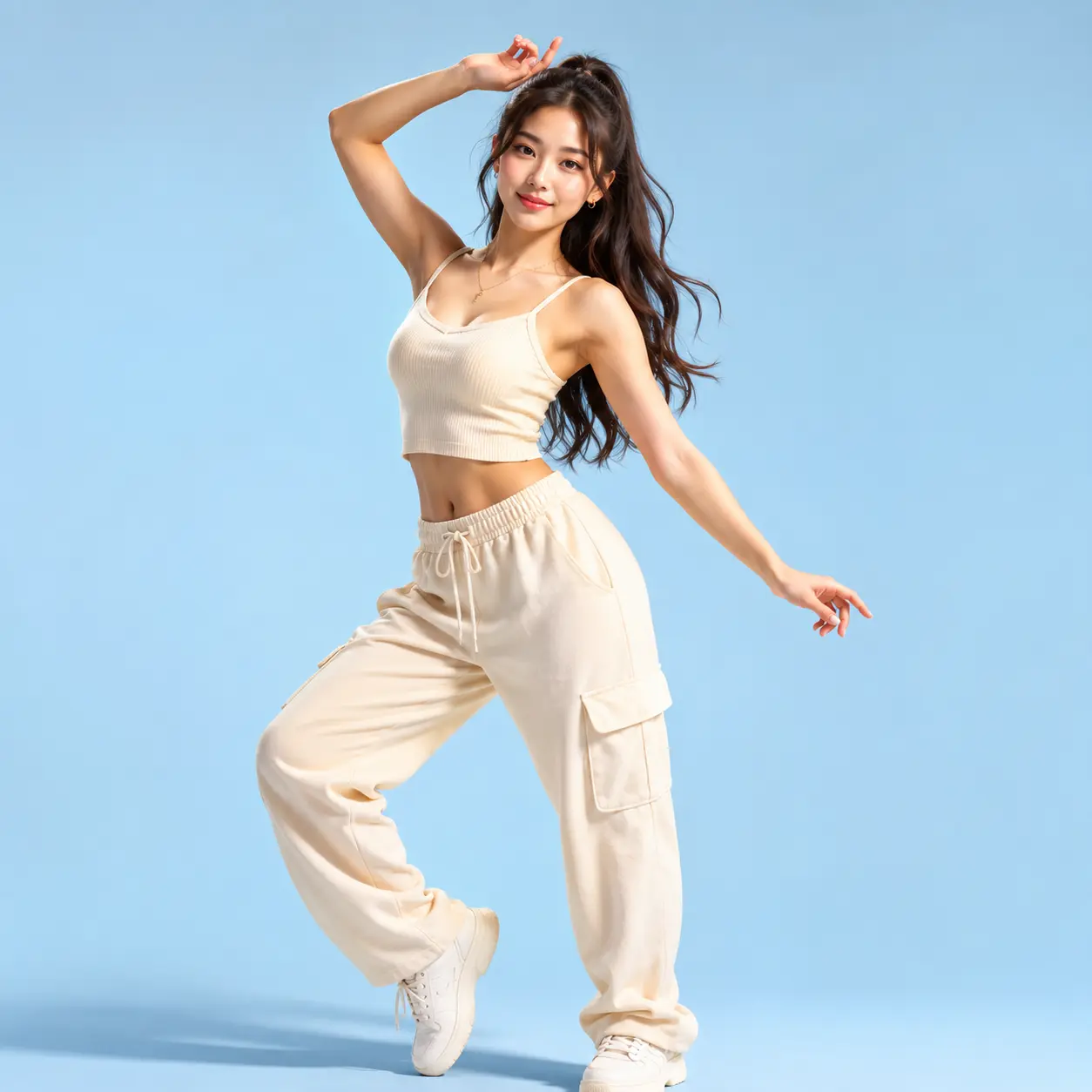
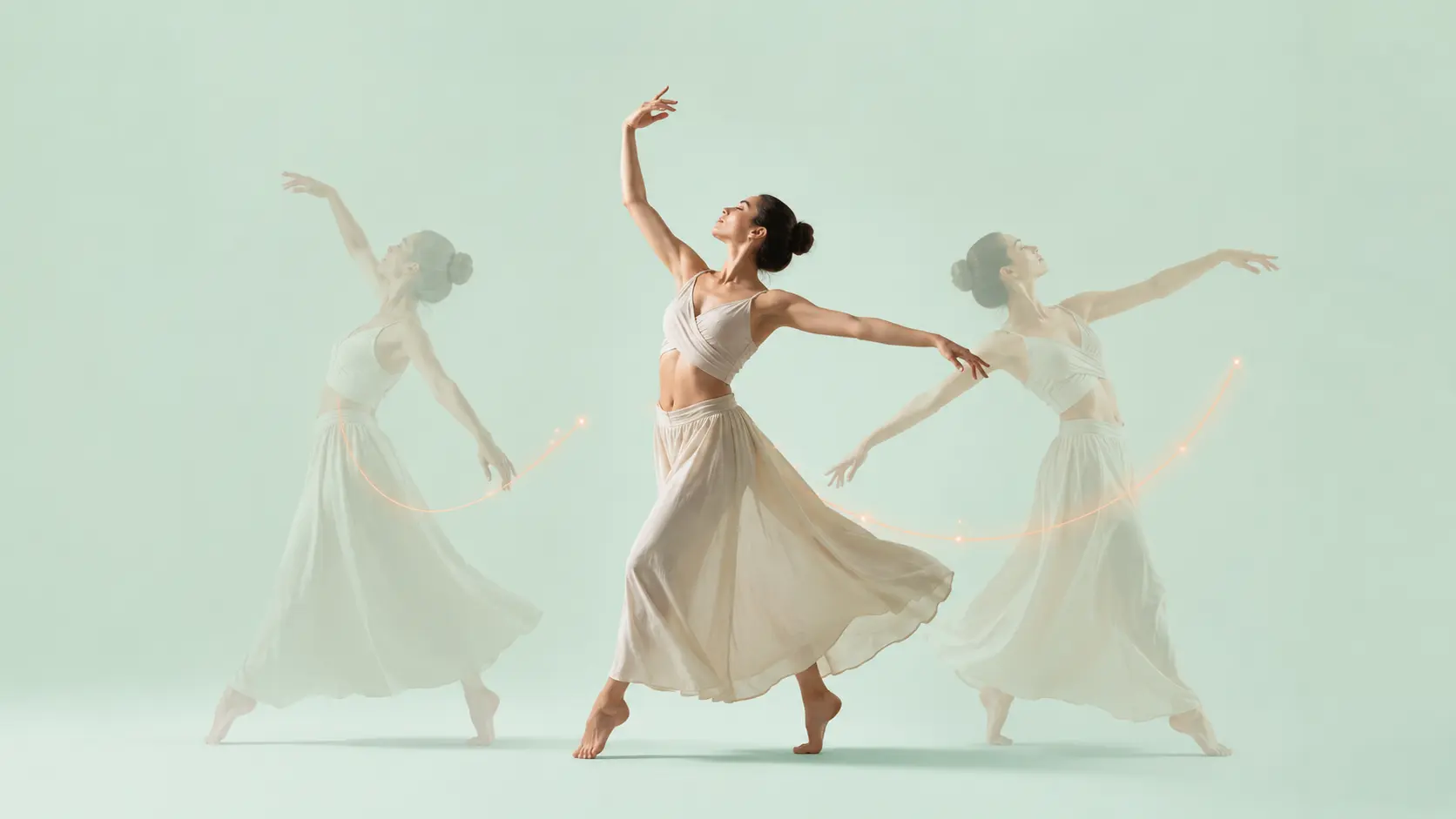
veme is an AI video generator that turns a still image or a text prompt into a finished clip with natural motion, camera moves, and export ready output.
AI Video Generator
Turn A Still Into A Clip
veme is an AI video generator that turns a still image or a text prompt into a finished clip with natural motion, camera moves, and export ready output.
AI Video Generator Use Cases
Concrete jobs where the AI video generator turns a flat asset into motion that ships.
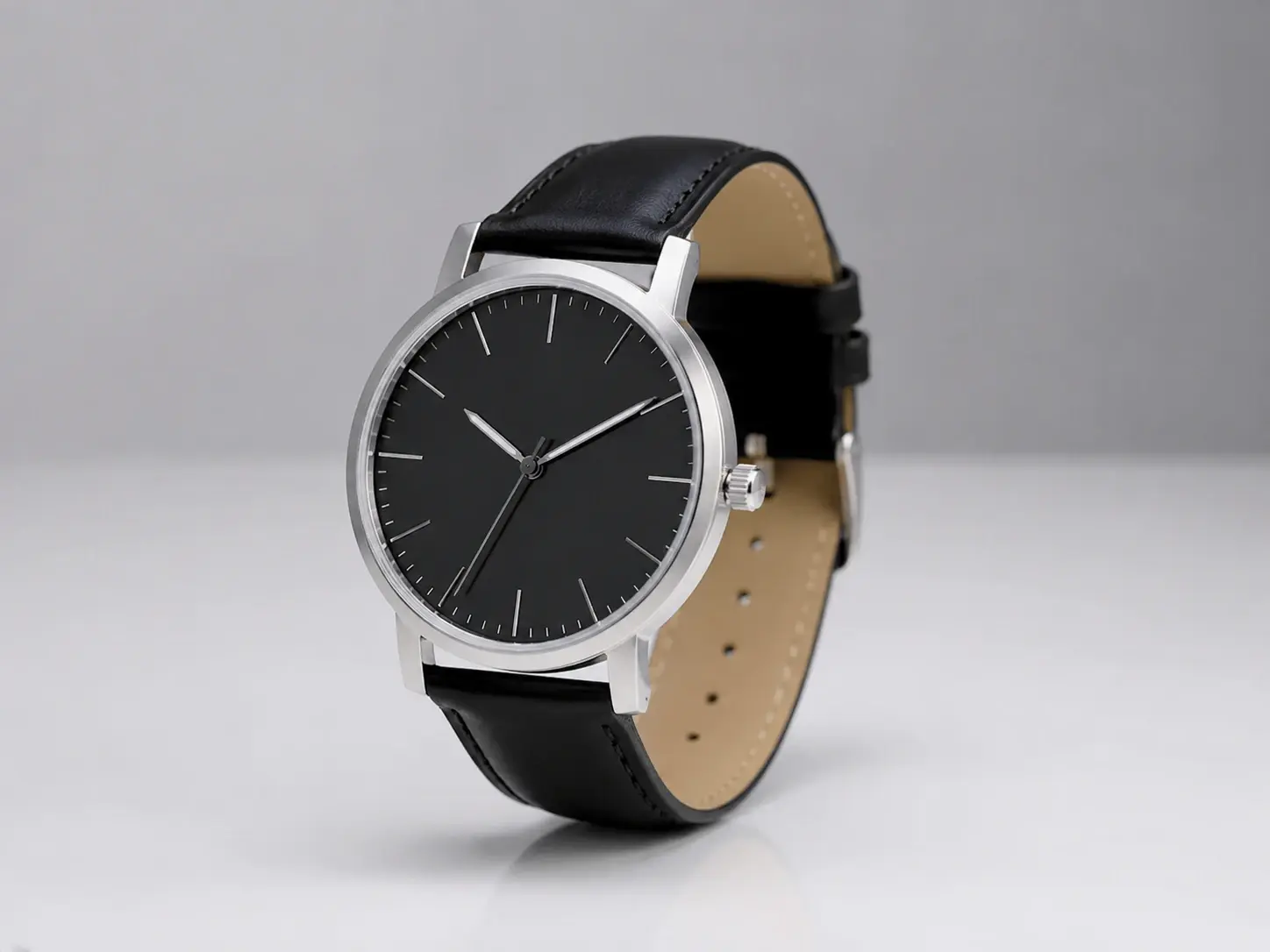
Product Catalogue Motion
Turn a catalogue photo into a short rotating clip for a product page. The photo to video ai adds a clean push in and keeps the lighting steady. Export a clip that matches your store look without booking a shoot.
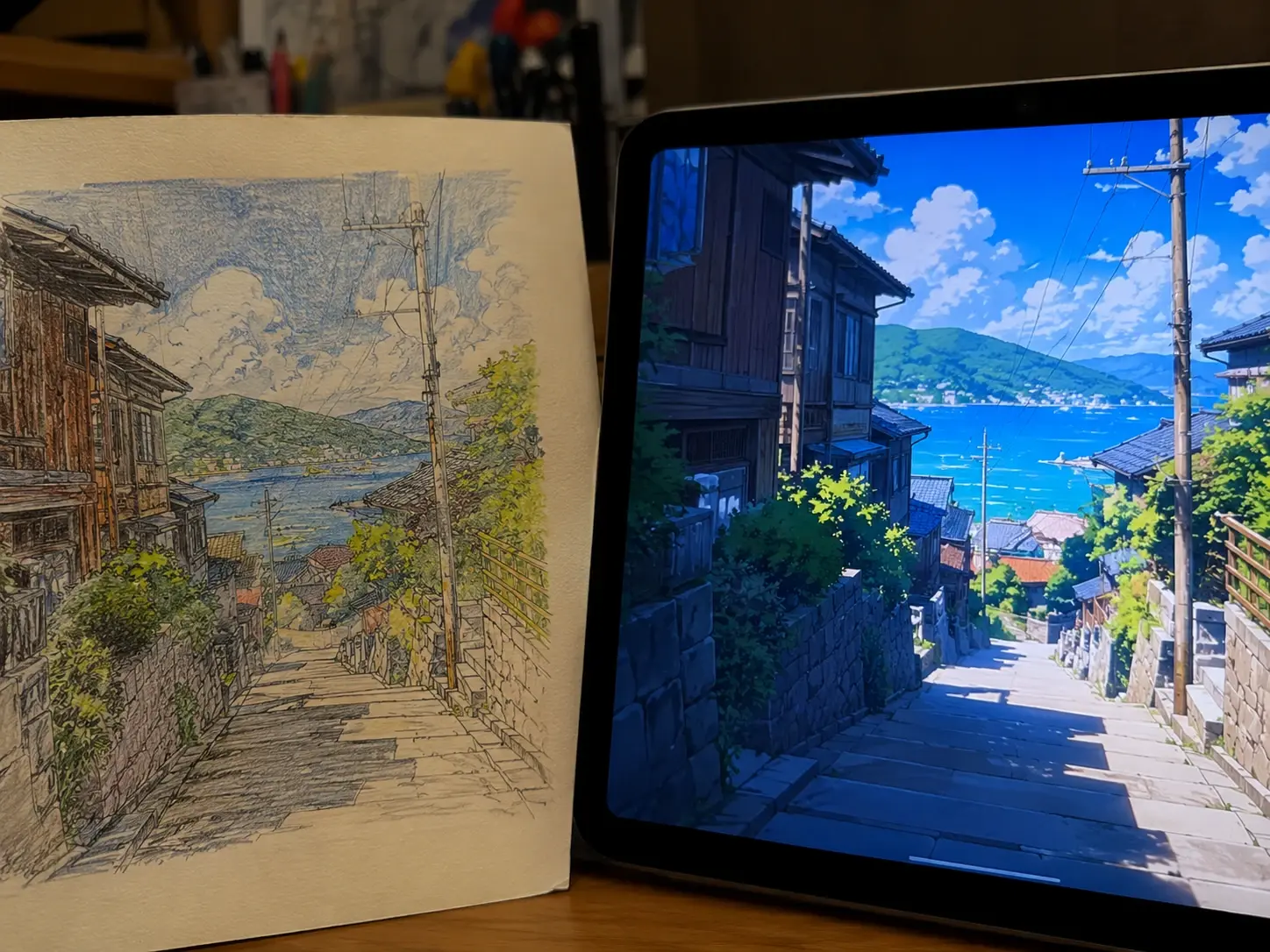
Illustration To Animation
Bring a flat illustration to life with the AI anime generator and a controlled camera drift. Set the motion path, pick the anime look, and the line work stays clean across frames. The export reads like a hand animated cut.
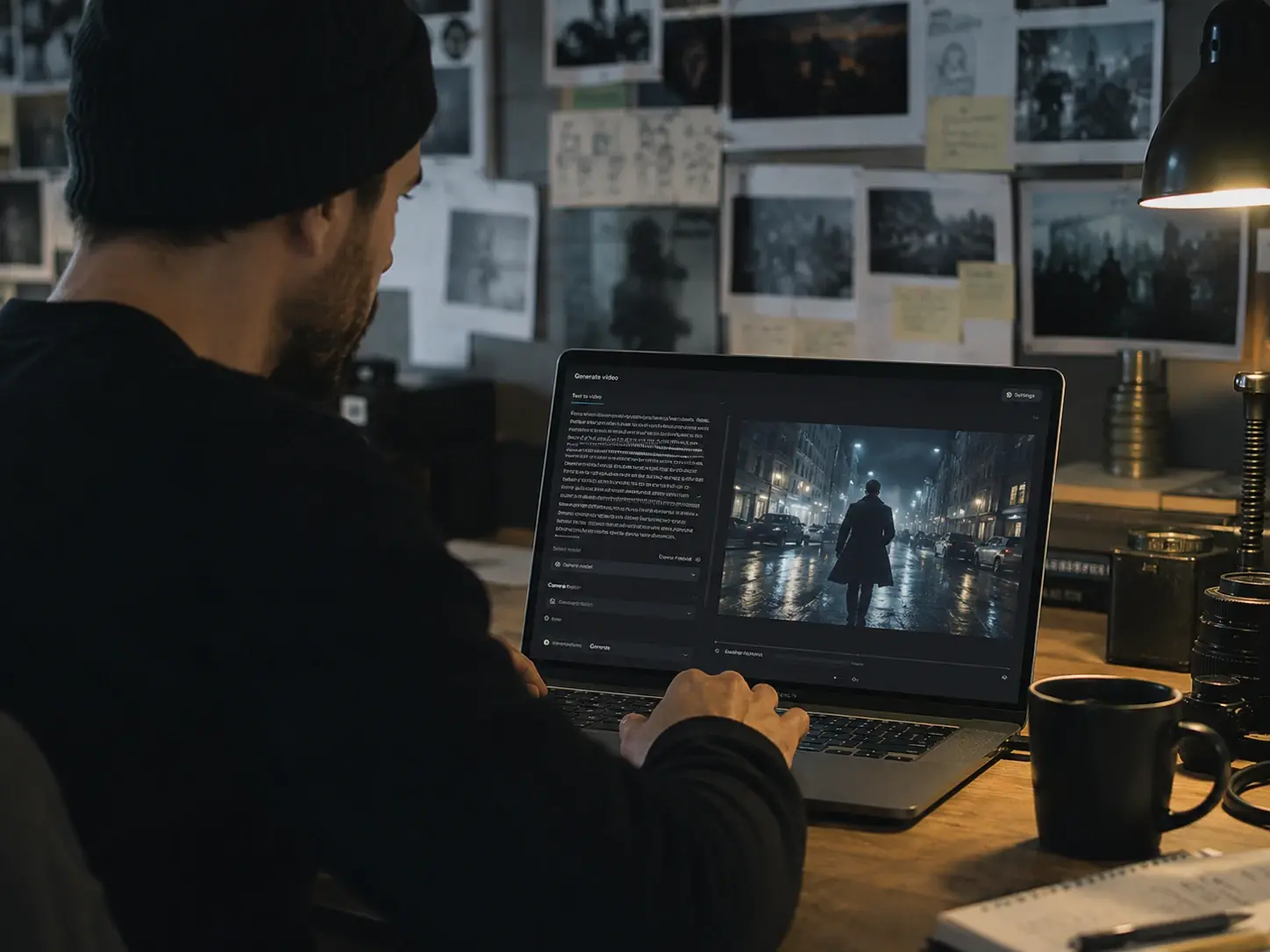
Concept From A Prompt
Write a scene in text and the AI video generator drafts a moving concept for a pitch. Adjust the camera, confirm the pacing, and hand the clip to an editor. Your concept moves on screen before full production starts.

Pet And Portrait Clips
Animate a pet or portrait photo with a subtle, natural drift. The AI generated video keeps the face and detail sharp while the camera moves. Export a personal clip that feels recorded, not pasted together.
How The AI Video Generator Works
Three steps from a still image or a prompt to a finished clip.
Upload Or Describe
Start by uploading a photo or writing a short text prompt that names the scene. The text to video ai reads your input and drafts a first pass from the motion cues. When you upload a still, that frame becomes the opening shot and the tool builds movement from there. Review the draft before you move on.
Set Motion And Style
Pick the visual style and define the camera move inside the scene. The AI video generator gives you pan, zoom, and rotation control so the result fits the pace you need. Choose a cinematic, anime, or clay look, and the render holds that style across every frame. Confirm the settings and let the tool build the sequence.
Preview And Export
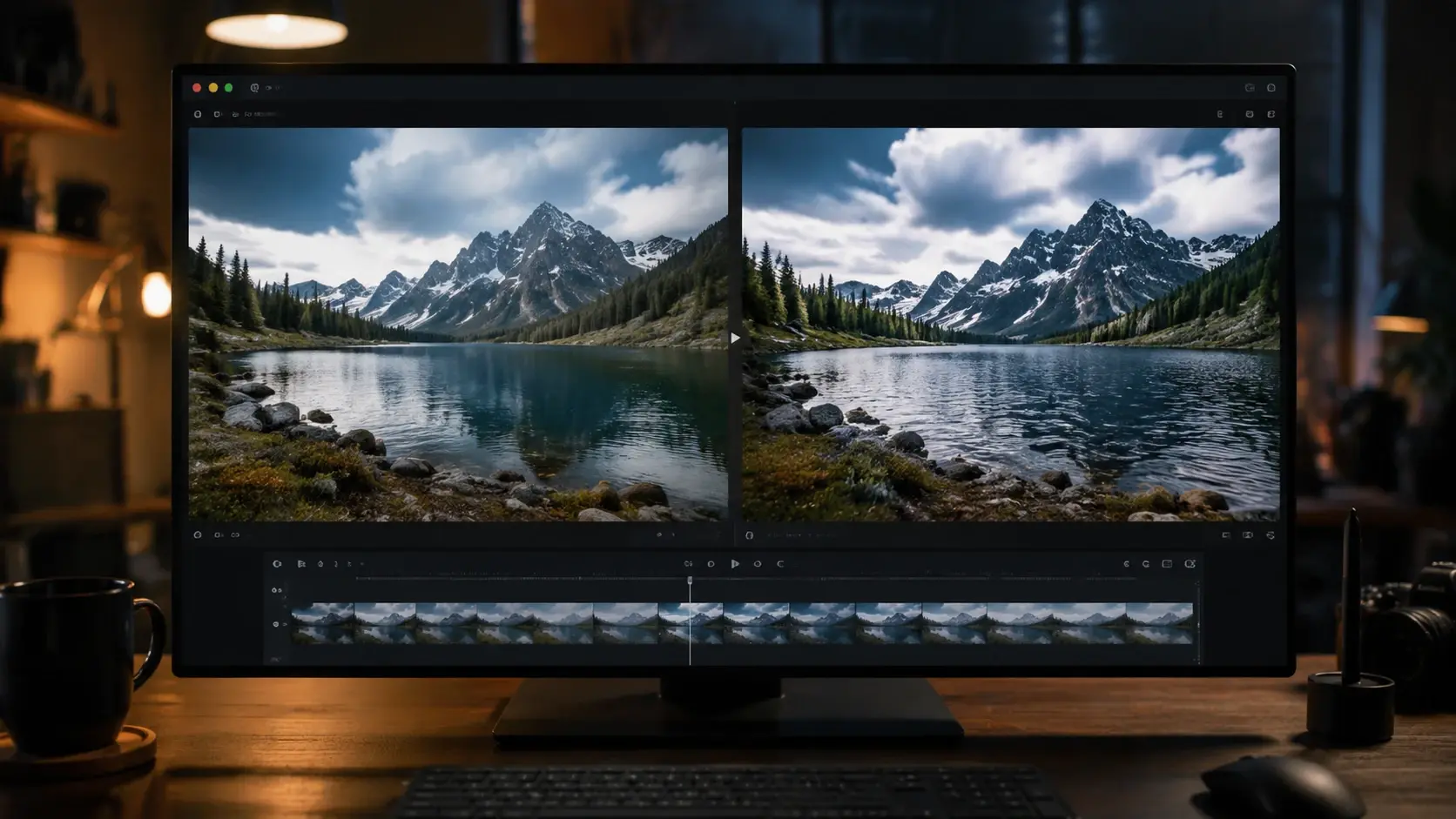
Watch the rendered clip in the preview player and check timing, color, and motion. The AI video generator lets you adjust the duration or regenerate one section without restarting the full render. When the result looks right, export at your target resolution and add music or voiceover later.
AI Video Generator Questions

Turn A Still Into A Clip
Open the AI video generator in veme, upload a photo or prompt, and export a finished clip with natural motion already in place.