

AI Text to Video Generator
VEME is an AI text to video generator that turns a written prompt into a short clip with natural motion and camera moves. Prefer a photo as the start? The same studio also works as an AI image to video generator: upload a still, add a motion line, then pick a model, duration and aspect ratio before you generate.
- Text prompt or start frame
- Optional end frame on many models
- Credit-based plans

AI image to video generator: land the shot where you want
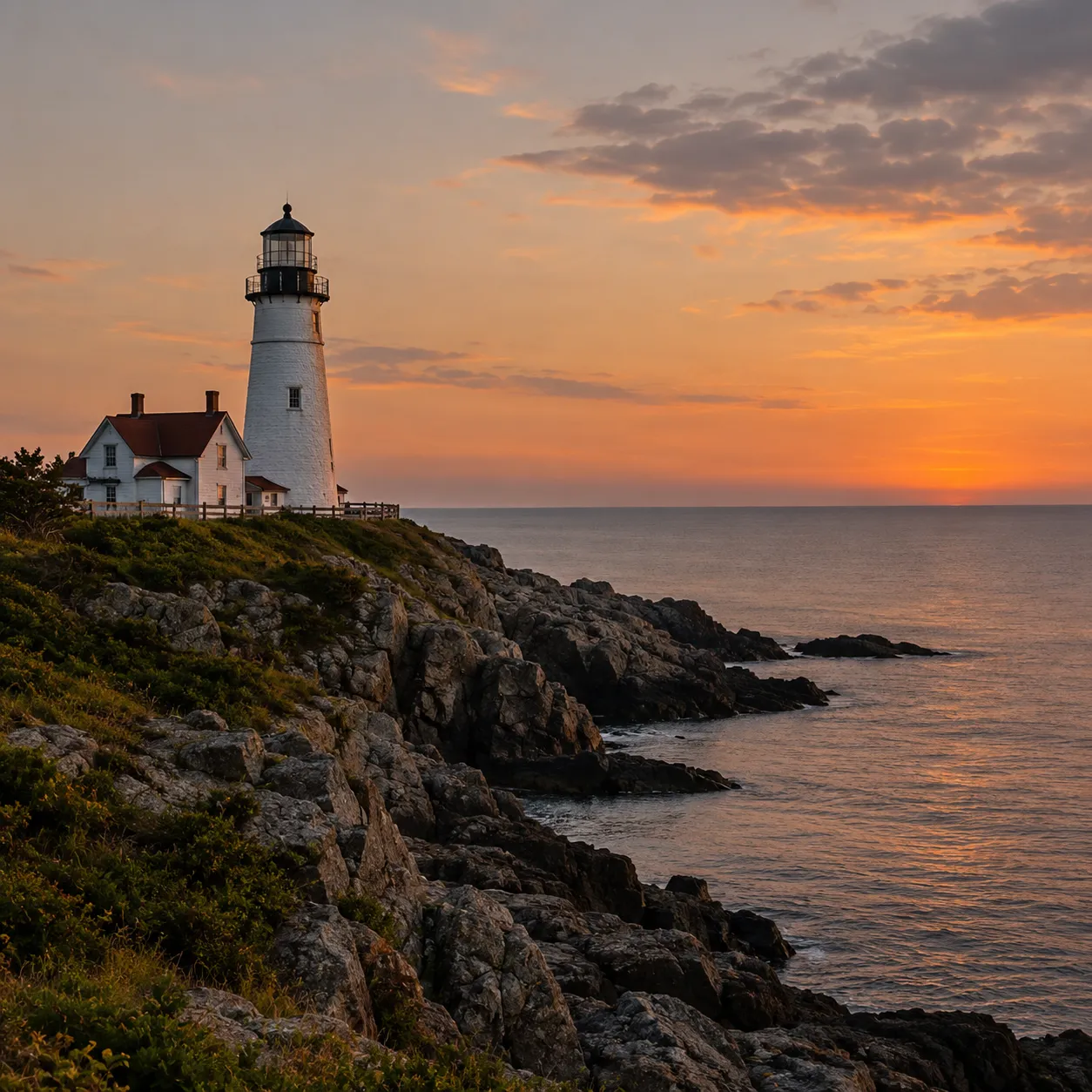
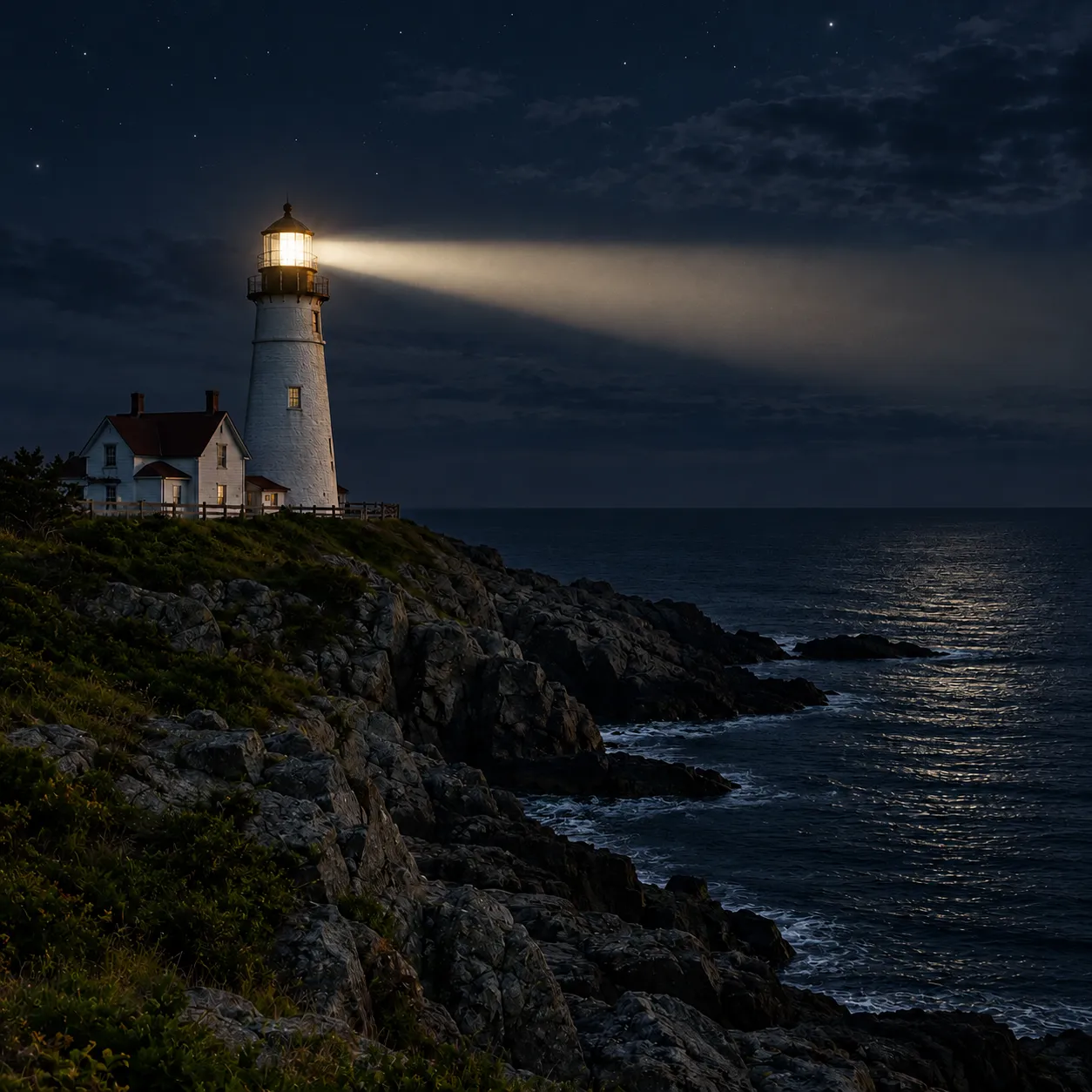
When you run the AI image to video generator path, the start frame fixes how the shot opens. On models that accept an end frame, a second still tells the model where the shot should finish, so the motion in between has a clear destination instead of drifting.
Keep the camera close
Use two stills shot from nearly the same angle. When the framing matches, the model only has to invent light and movement, not a new layout.
Change one big thing
Day to night, closed to open, empty to full. One clear change between frames reads better than five small ones fighting for attention.
Skip it when unsure
The end frame is optional. Leave it empty and the model decides the ending from your prompt, which suits loops and gentle ambient motion.
What an AI text to video generator needs in the prompt
Whether you start from words alone or from a still, the prompt should spend its words on what changes. A strong text-to-video prompt usually has four parts; with a photo, skip describing looks the frame already shows.
Slow 180-degree orbit around the sneaker, soft rim light moves with the camera, pedestal stays still.Gentle breeze lifts her hair and the curtain, she blinks once and smiles, camera locked off.Leaves drift down in layers, the fox turns its head toward the camera, slow parallax between paper layers.Drone-style pull-back and rise over the lake, mist moves across the water, steady pace.Want to test one of these? Try a prompt with or without a still.
Stills people animate with an AI image to video generator
Different stills need different motion. These four jobs come up most often on the AI image to video generator path, each with the camera move that tends to suit it.
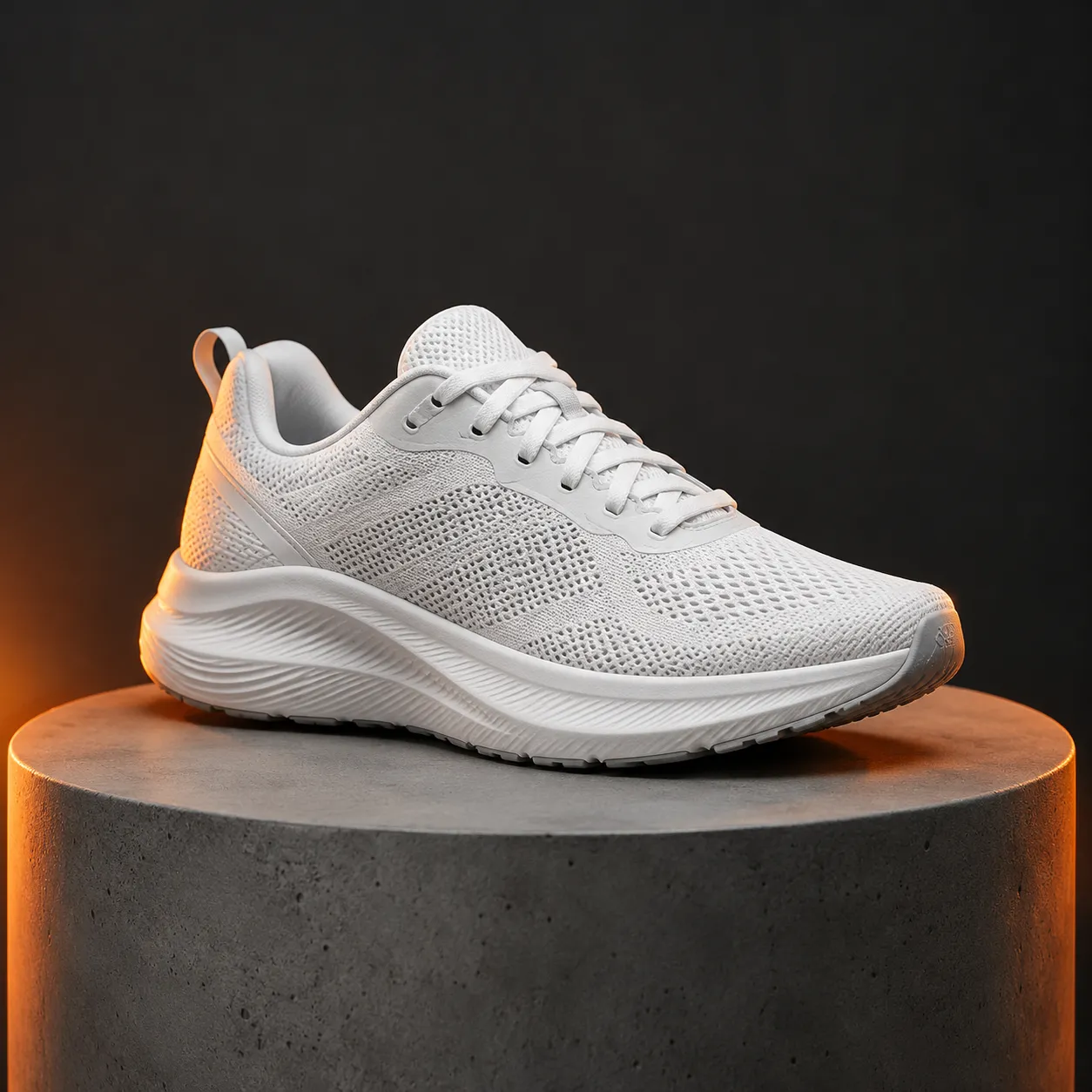
Product photo to a store clip
Turn one catalogue shot of a sneaker into a short rotating clip for a product page or ad, without booking a new shoot.
Orbit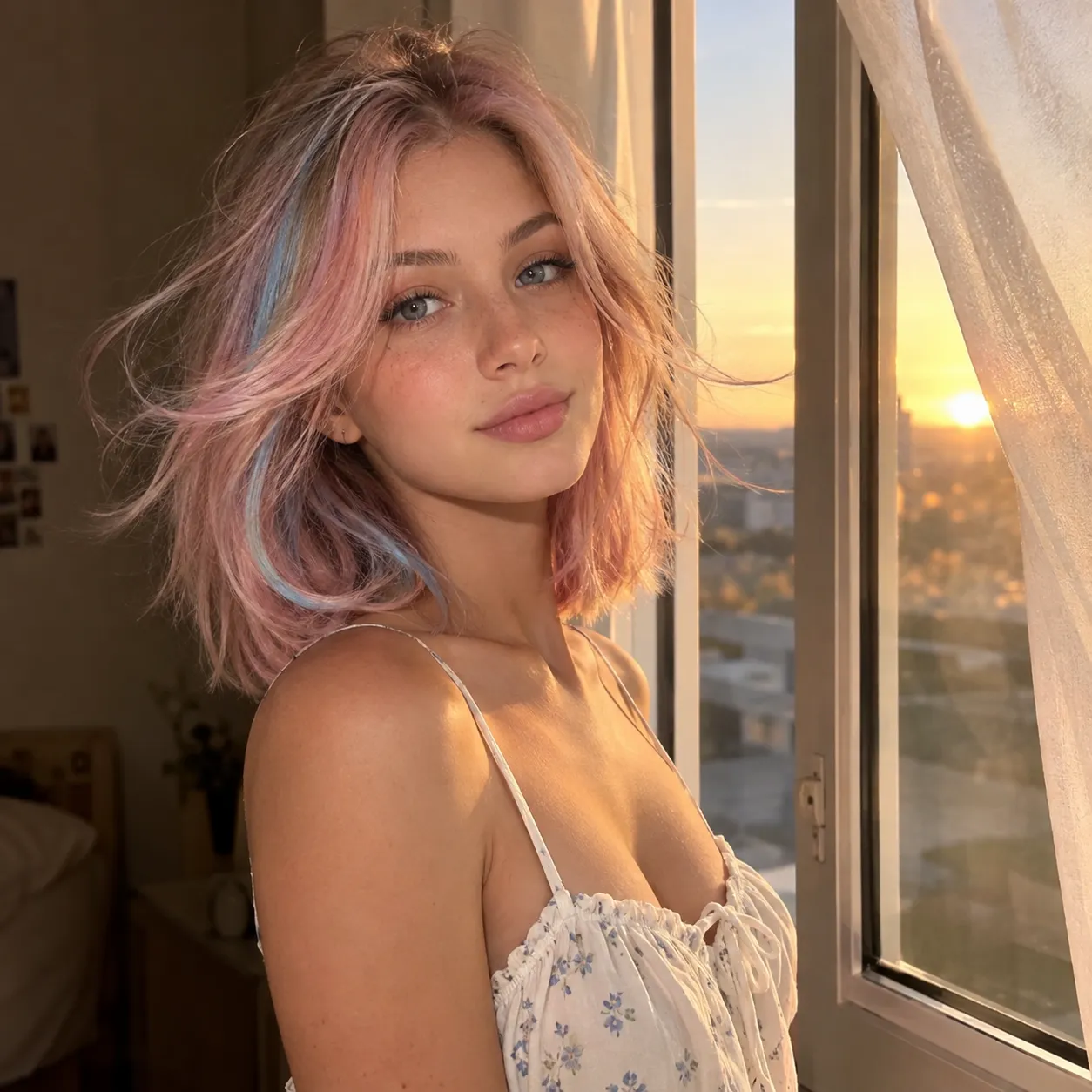
Portrait to a living photo
Add a breath of motion to a portrait by a window: moving hair, a blink, a curtain in the breeze. Small motion keeps the face steady.
Locked-off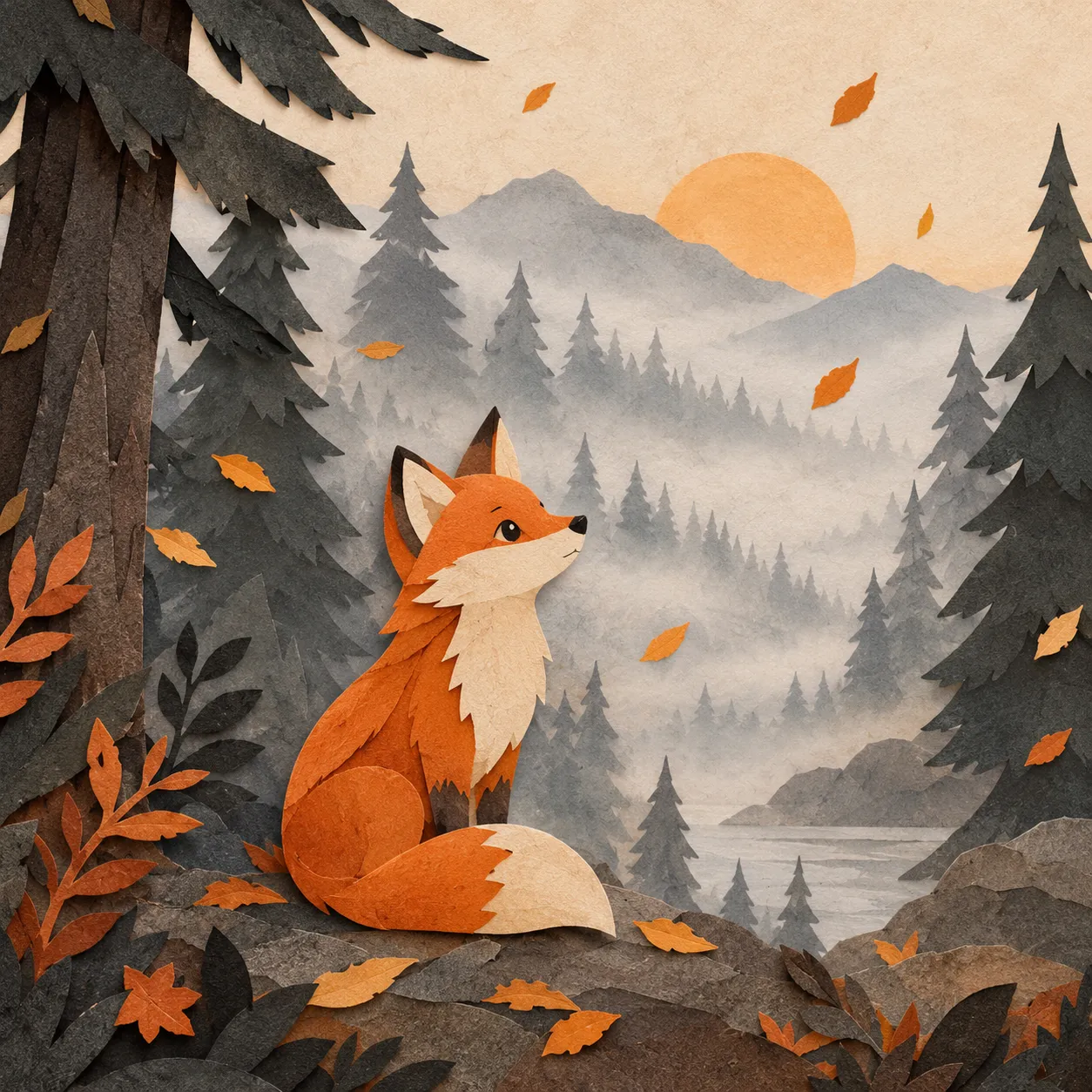
Illustration to a moving scene
Give a paper-cut fox illustration falling leaves and gentle parallax, useful for story posts, channel intros and looping banners.
Parallax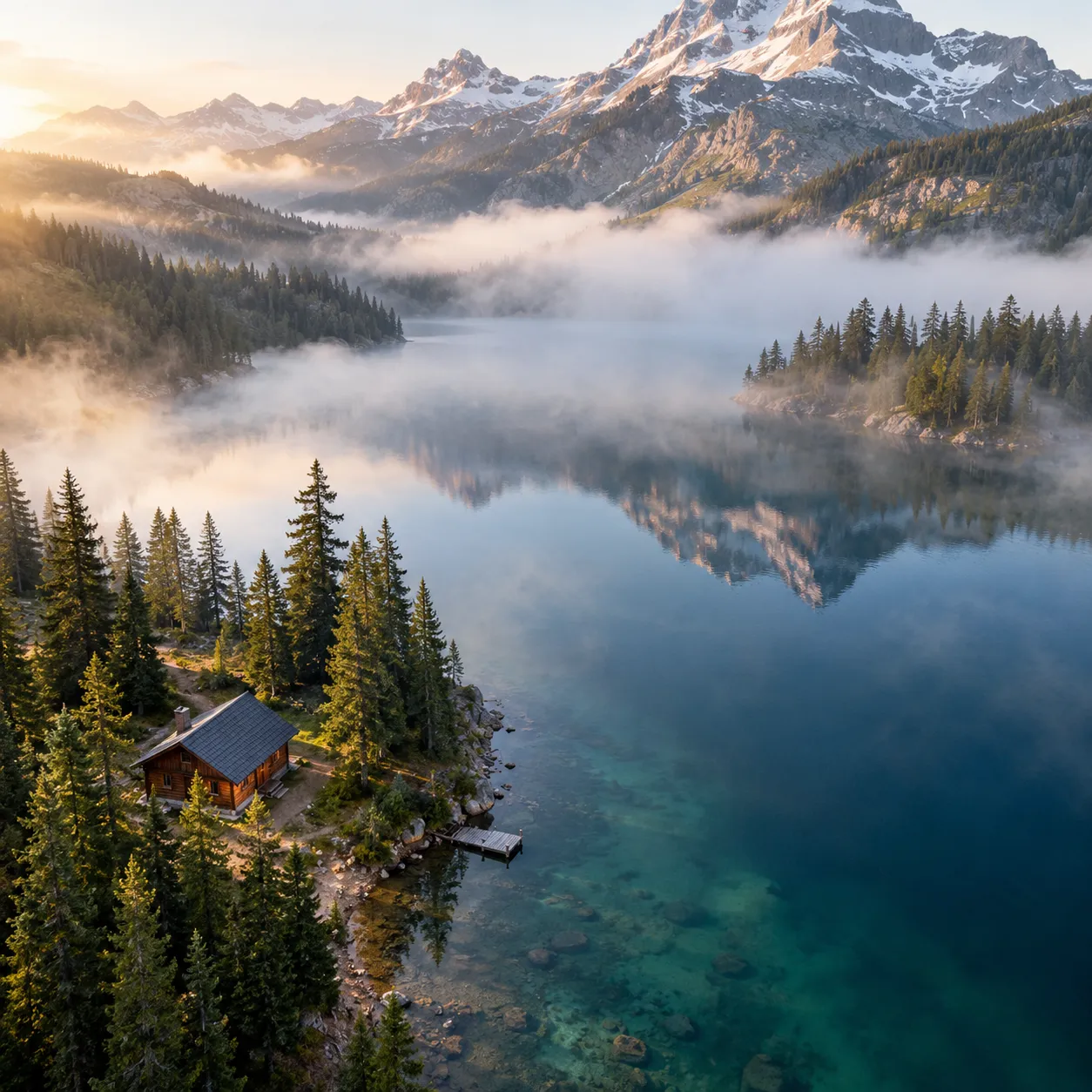
Travel photo to a drone reveal
Turn an aerial photo of a mountain lake and cabin into a rising reveal for a travel reel, a B-roll insert or a trip recap.
Pull-backPick a model, then set length and size
The create menu lists several video models for text prompts and for framed stills, and each one exposes its own settings. A sample of what the menu showed on October 20, 2026 is below. Options can change, so check the panel before you generate.
| Model | Start frame | End frame | Duration | Resolution |
|---|---|---|---|---|
| Seedance 2.0 | Required | Optional | 4 to 15 s | 480p, 720p |
| Seedance 2.5 | Required | Optional | 4 to 30 s | 480p, 720p |
| Kling 3.0 | Required | Optional | 3 to 15 s | Standard, Pro or 4K mode |
| Wan 2.7 | Optional | Optional | 3 to 10 s | 720p, 1080p |
| veo3.1-fast | Optional | Optional | 8 s | Not listed (16:9 or 9:16 only) |
| Hailuo 2.3 | Required | Not listed | 6 or 10 s | 768p |
Some models, including Seedance 2.0 and Kling 3.0, also show a generate audio switch. Aspect ratios such as 16:9, 9:16 and 1:1 depend on the model. Open the tool to see the full list.
Prepare a still for the AI image to video generator
Source photo checklist
- The reference upload hint lists JPEG, PNG and WebP files up to 10 MB.
- Seedance models check the start frame: each side between 300 and 6000 pixels, and a width-to-height ratio between 0.4 and 2.5.
- Pick a sharp, evenly lit photo. Blur and heavy compression tend to get worse once things start moving.
- Leave some space around the subject if you plan a push-in or an orbit, so the camera has room to travel.
What to expect, plainly
- Generation uses credits from your VEME plan. Credit cost per clip is shown in the app, not on this page.
- Results are generated, so faces, hands, small text and logos can shift between frames. Check them before you publish.
- Each run makes one short shot. To build a longer video, generate several shots and join them in an editor.
- Use photos you have the right to use, and avoid real people who have not agreed to be animated.
How the AI text to video generator works
Choose text or a start frame
Open the create tool and pick a model. Type the scene for the AI text to video generator, or upload a photo when you want the AI image to video generator path. Add an end frame if the model accepts one and you know how the shot should finish.
Write the motion prompt
Describe the subject action, the camera move and the pace in one or two short lines, then set the duration, aspect ratio and resolution the model offers.
Generate and review
Run the generation, watch the clip and check faces, edges and product details. If the motion is off, adjust one part of the prompt and run it again.
AI text to video generator FAQ
What is an AI text to video generator on VEME?
An AI text to video generator turns a written prompt into a short clip with motion and camera moves. On VEME you pick a model, set length and size, then generate. Prefer locking the look first? Switch to the AI image to video generator path and upload a start frame instead.
How is the AI image to video generator different?
The AI image to video generator reads a still photo and predicts how the scene could move over a few seconds, so the subject keeps the look of your original picture. Text-only mode builds every frame from words alone. VEME also has a Text With Reference mode on the same tool page for prompts that mix text with image, video or audio references.
Is there a free way to try it?
Generation uses credits. Sign in and check the cost shown in the tool before running it; account offers and plan details are shown on the pricing page.
Which image formats can I upload?
The reference upload hint in the video tools lists JPEG, PNG and WebP up to 10 MB. Seedance models also check that each side of the start frame is between 300 and 6000 pixels and that the aspect ratio falls between 0.4 and 2.5.
How long can the clip be?
It depends on the model you pick. In the current menu, Seedance 2.0 allows 4 to 15 seconds, Seedance 2.5 allows 4 to 30 seconds, and veo3.1-fast is fixed at 8 seconds. The duration control in the panel shows the range for the model you selected.
Can I control where the video ends?
Yes, on models that accept an end frame, such as Seedance 2.0, Kling 3.0 and Wan 2.7. Upload a second still as the end frame and the model plans the motion between the two images. Matching camera angles between frames gives the smoothest result.
Make your first clip today
Type a scene or upload a still, then generate and see your first shot.
Start now