

Style Transfer: Give Your Photo a New Art Style
Style transfer on VEME takes a photo you already have and repaints its surface, so colors, brushwork and texture change while the subject stays in place. Pick a ready-made preset or upload your own style reference, then decide how strongly the look is applied.
- Style presets
- Custom style reference
- Custom strength 0–100%
- One result per run
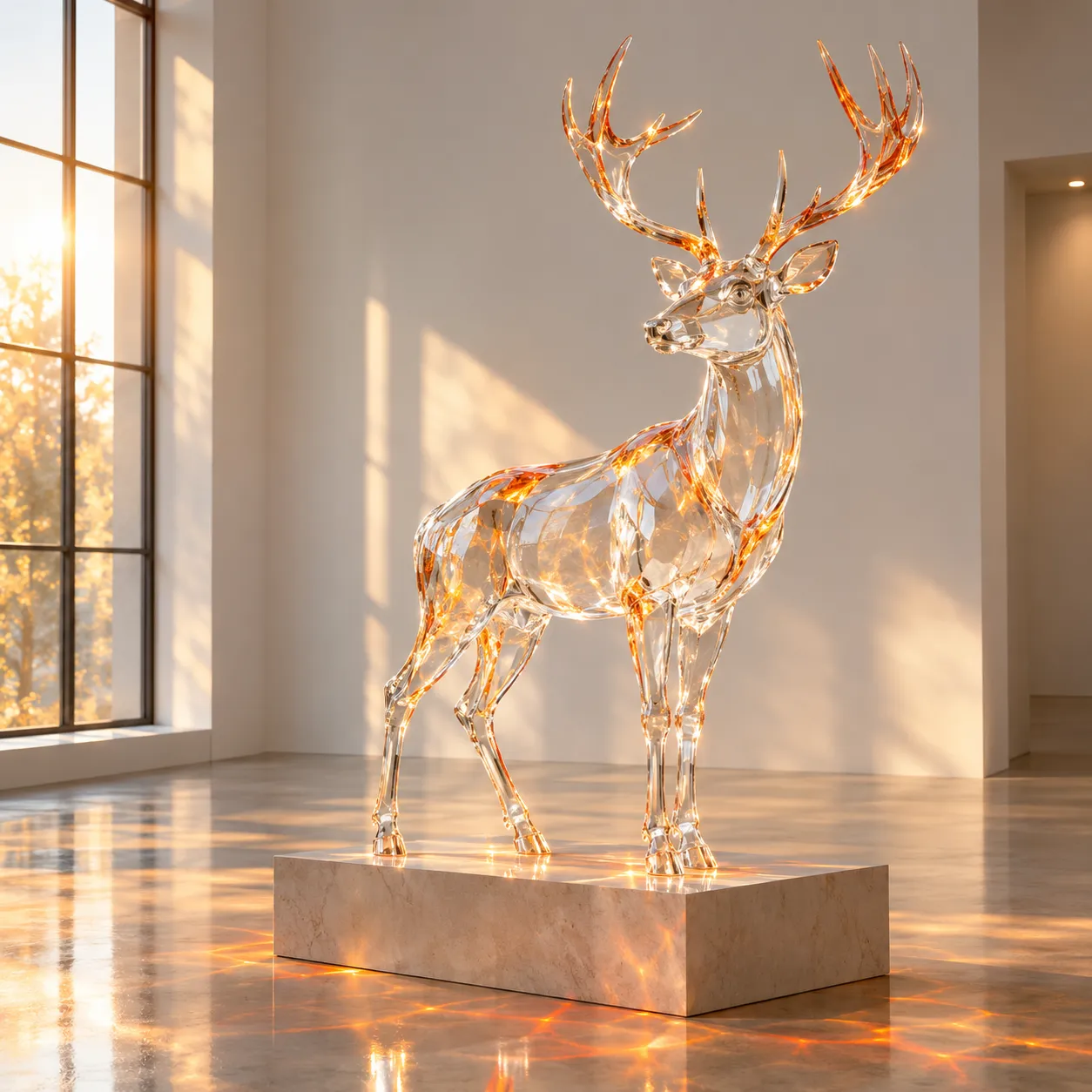 Illustration · Glass crafted statue look
Two ways to set the look in AI style transfer
Choose Style, Color or Custom. Each starts with the image you want to restyle; the two reference workflows below cover presets and your own reference.
Pick a preset
Open Style presets and choose a named look, from Renaissance oil painting to clay stop-motion style. You only need one picture.
- You add
- One photo and one preset
- Best for
- Fast experiments and familiar looks such as painting, sketch, anime or sculpture
- Optional
- Compare the preset with your original image
Choose a style reference
Upload a second image whose palette, brushwork and texture you want to borrow, for example a scan of your own painting or a frame from an earlier shoot.
- You add
- One photo and one style reference
- Best for
- Matching a look you already own and keeping a series consistent
- Optional
- Adjust the custom reference strength
Use style references you made yourself or have permission to use. Color presets are also available in the editor.
How far should your photo move?
In Custom mode, Style Strength runs from 0% to 100% and starts at 75%. Use it to balance your photo against your uploaded style reference.
- 25%
A light pass. Color and texture may shift while shapes and small details mostly hold.
- 50%
The look is clear, and faces and edges usually stay close to the original photo.
- 75%Default
A strong look that is meant to keep the subject easy to recognize.
- 100%
The fullest restyle, with the most room for small details to drift.
These are rules of thumb, not fixed outcomes; results may vary by photo and look. If a face starts to look like someone else, lower the slider by 10 to 15 points and run again.
Photo to painting, anime, clay and charcoal
Four example pairs, one per preset look. The subject, pose and layout carry over from the photo; only the surface changes.
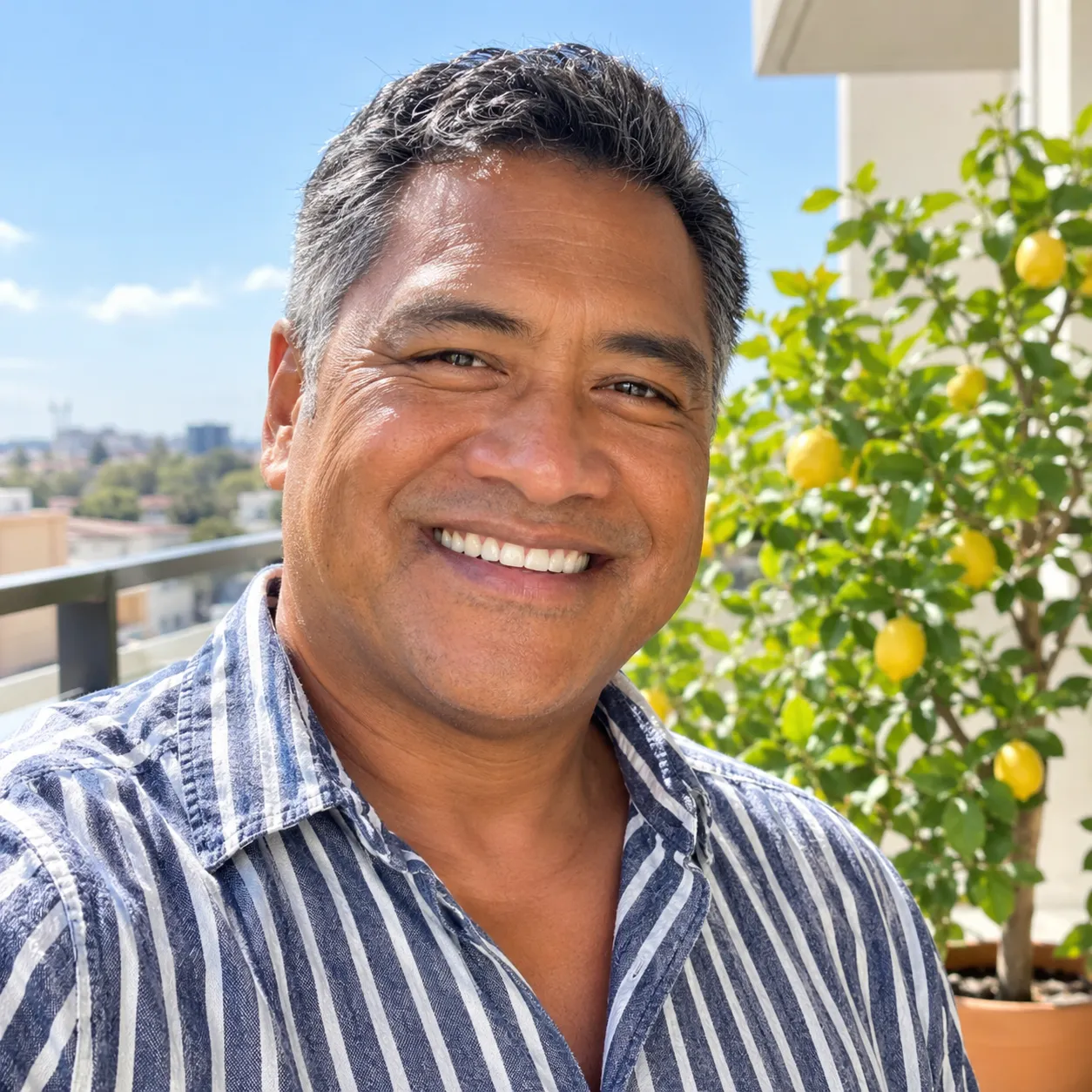 Your photo
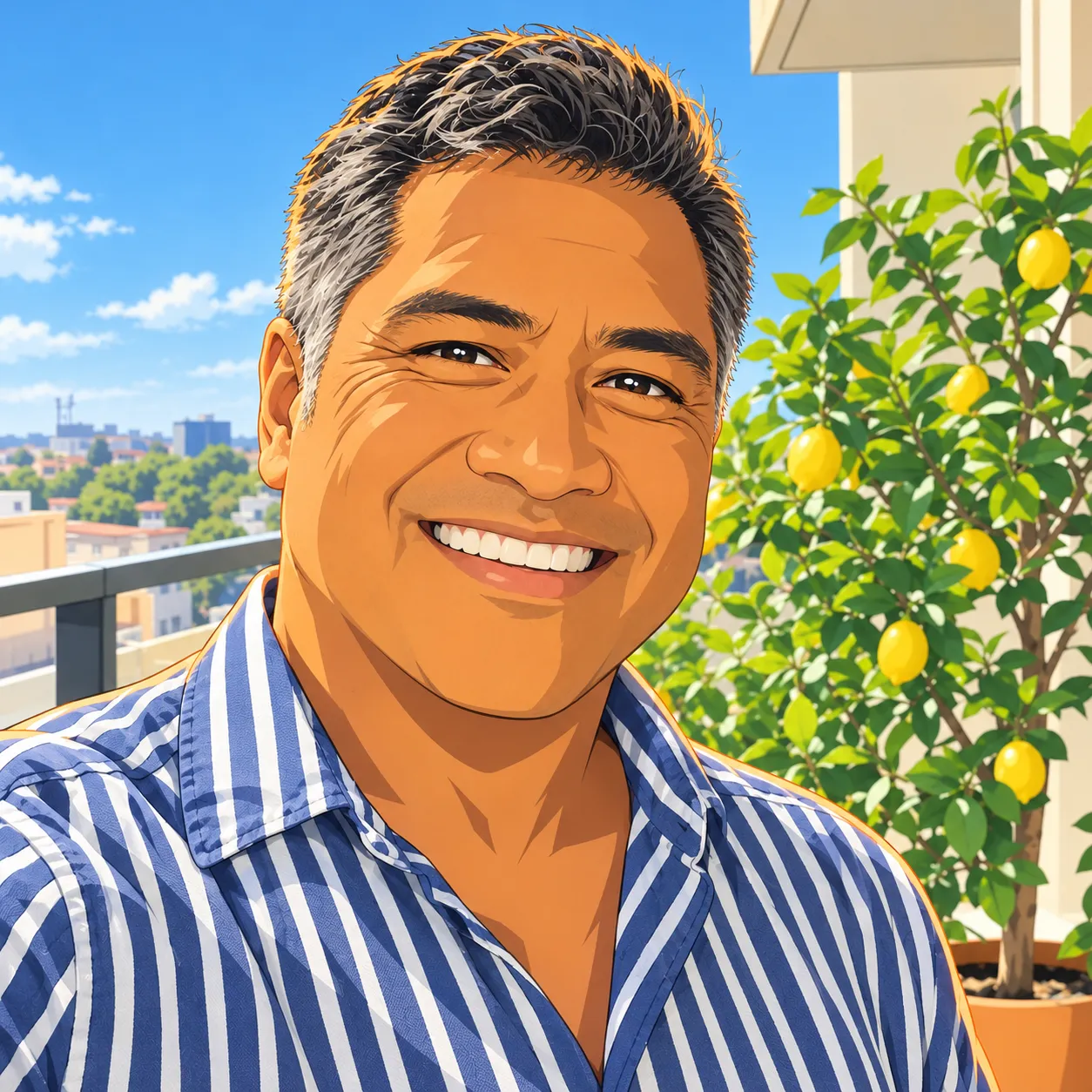 Styled
Photo to anime
Skin and fabric flatten into clean outlines and cel shading, while the smile, shirt stripes, lemon tree and balcony stay.
Illustrates the preset: Japanese anime shading
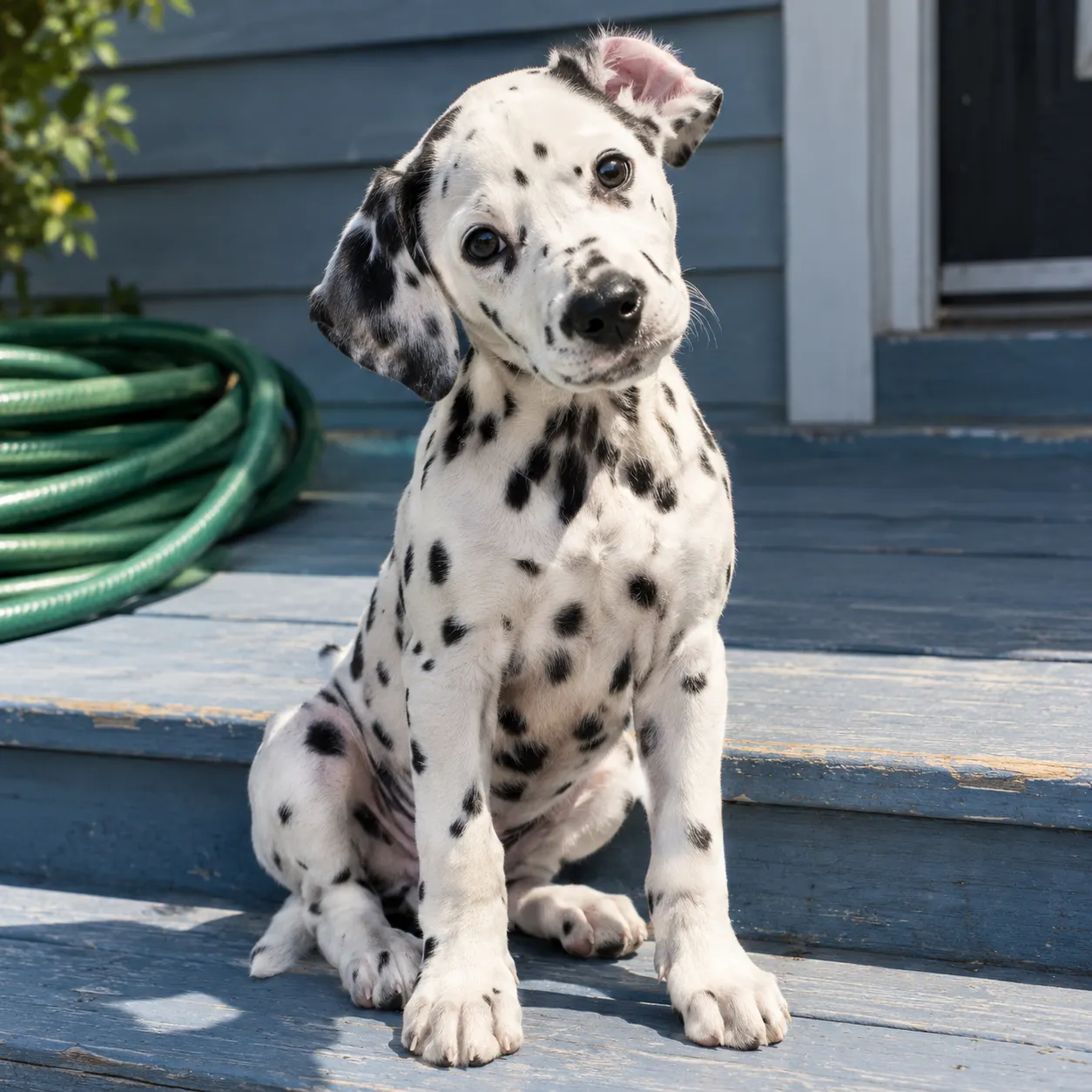 Your photo
 Styled
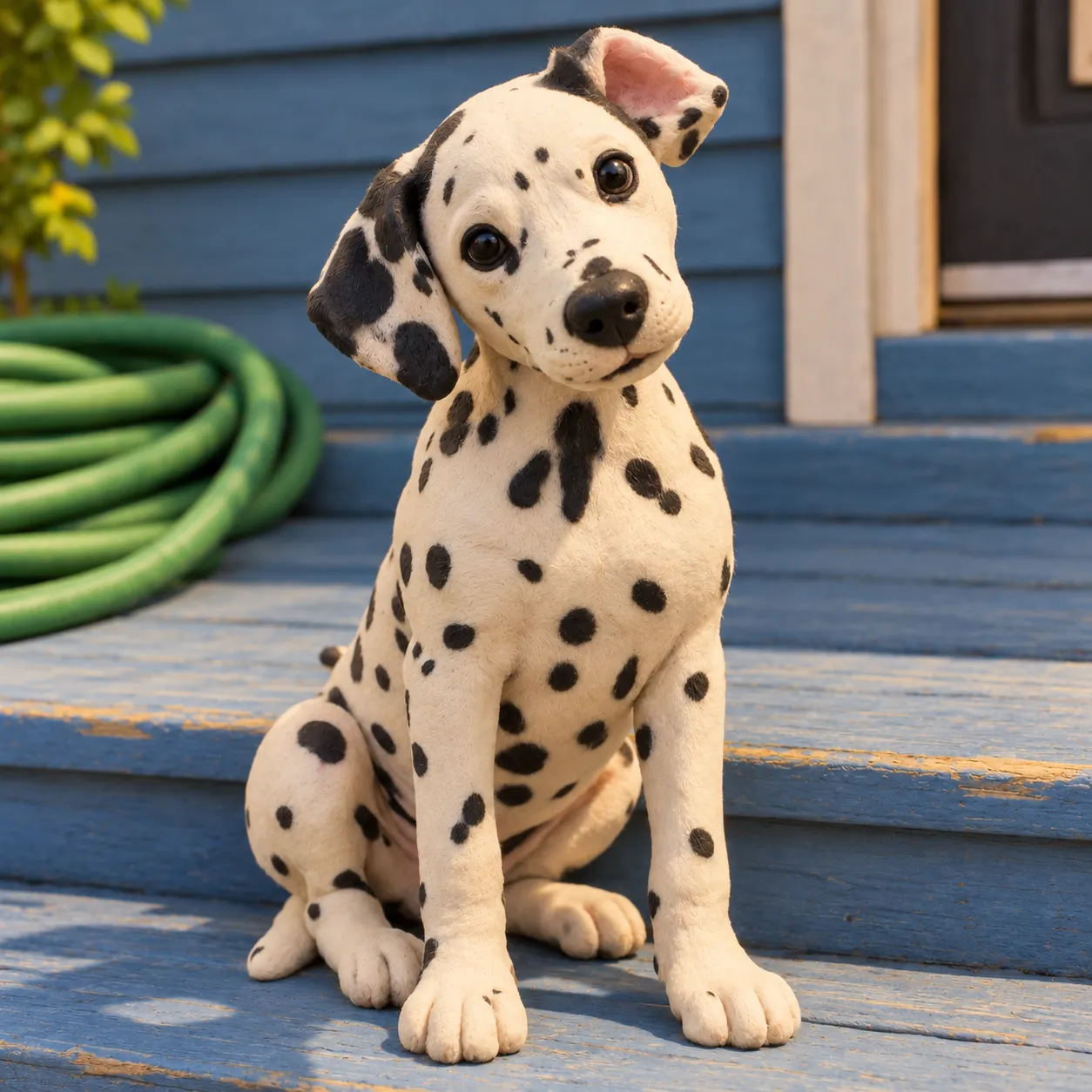
Pet photo to clay figure
Soft fur turns into a smooth, matte handmade figure; the spots, the flipped ear and the head tilt come along.
Illustrates the preset: Clay stop-motion style
 Your photo
 Styled
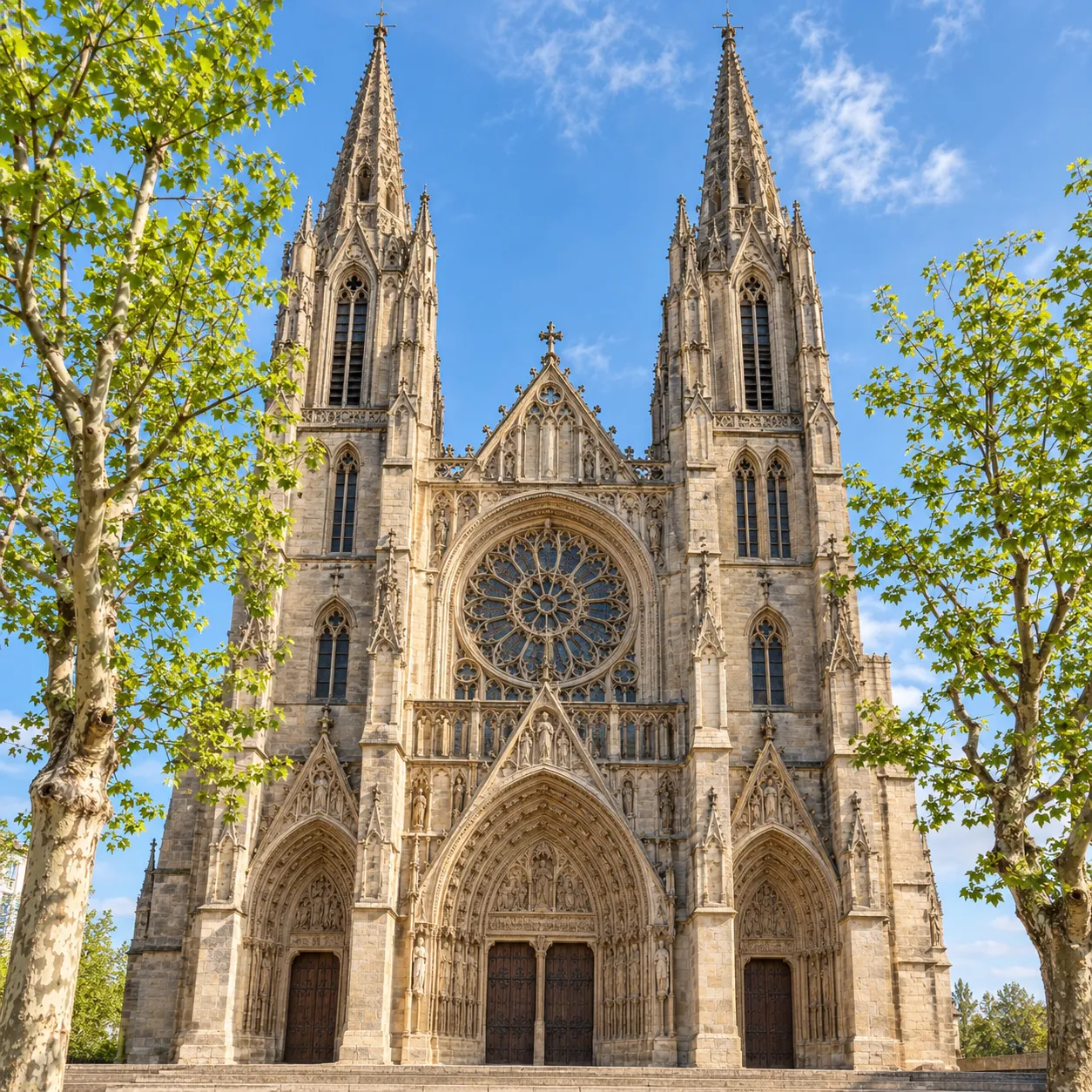
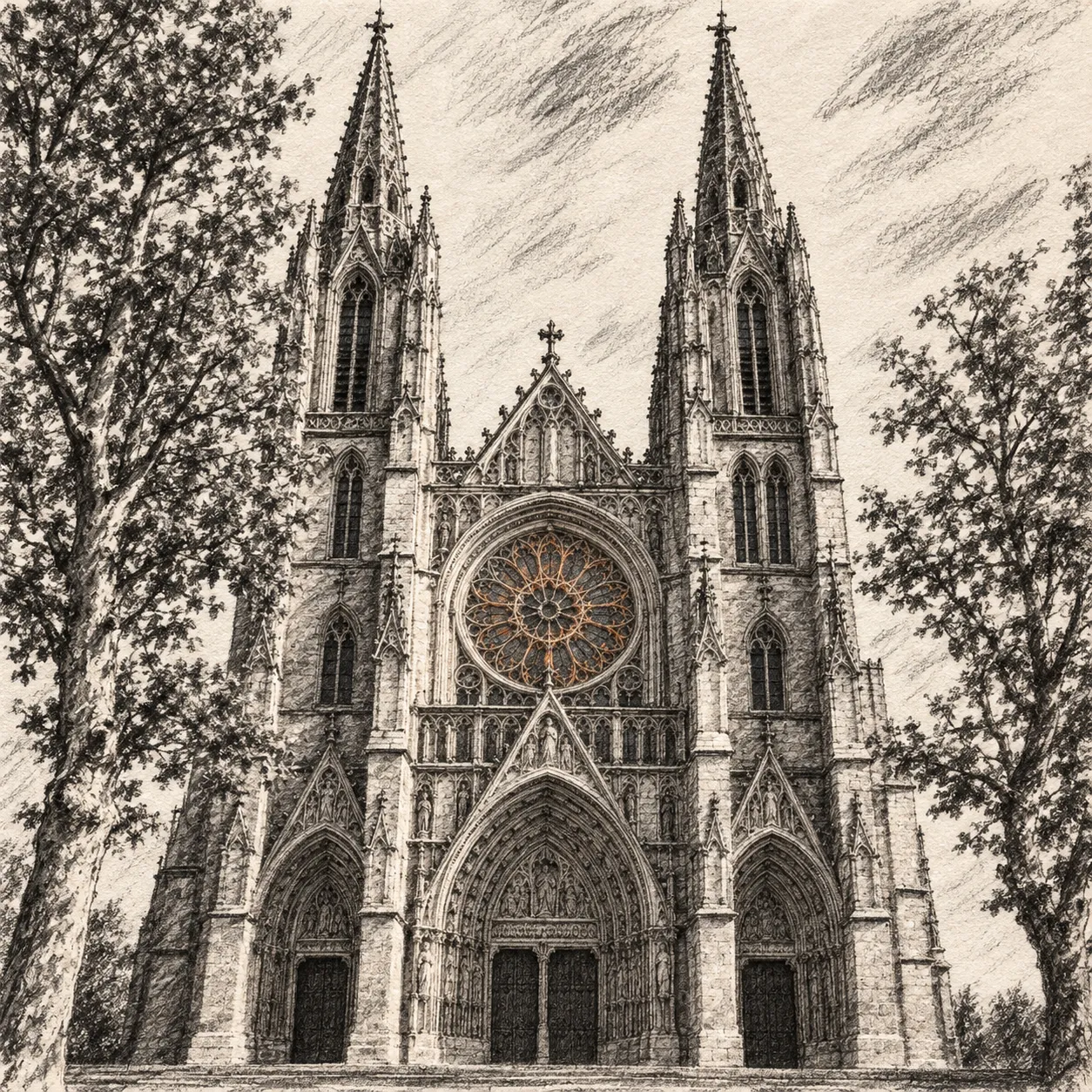
Building to charcoal drawing
Color drops away and stone becomes smudged strokes and hatching, while the towers, doorways and rose window keep their place.
Illustrates the preset: Rough charcoal drawing
 Your photo
 Styled
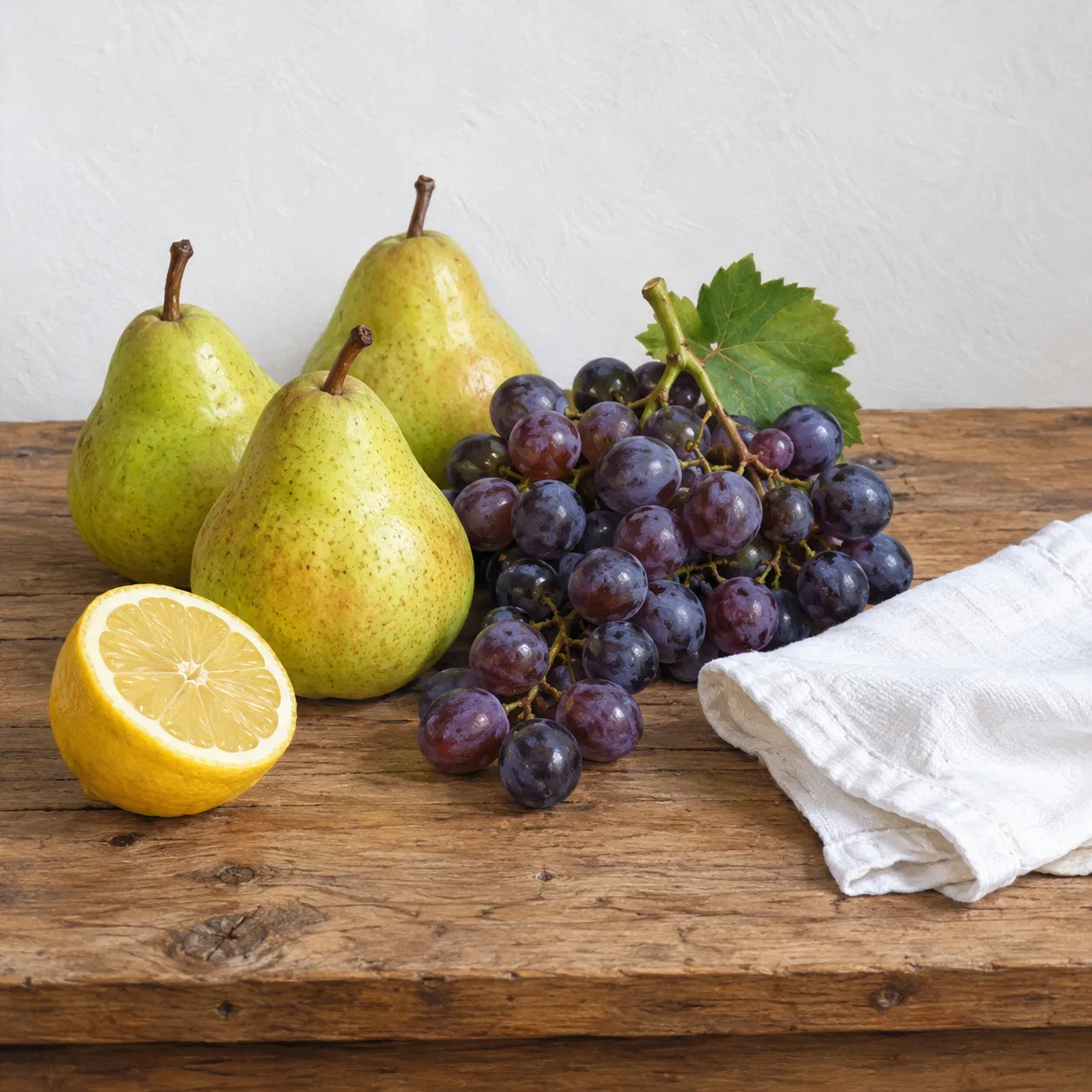
Photo to oil painting
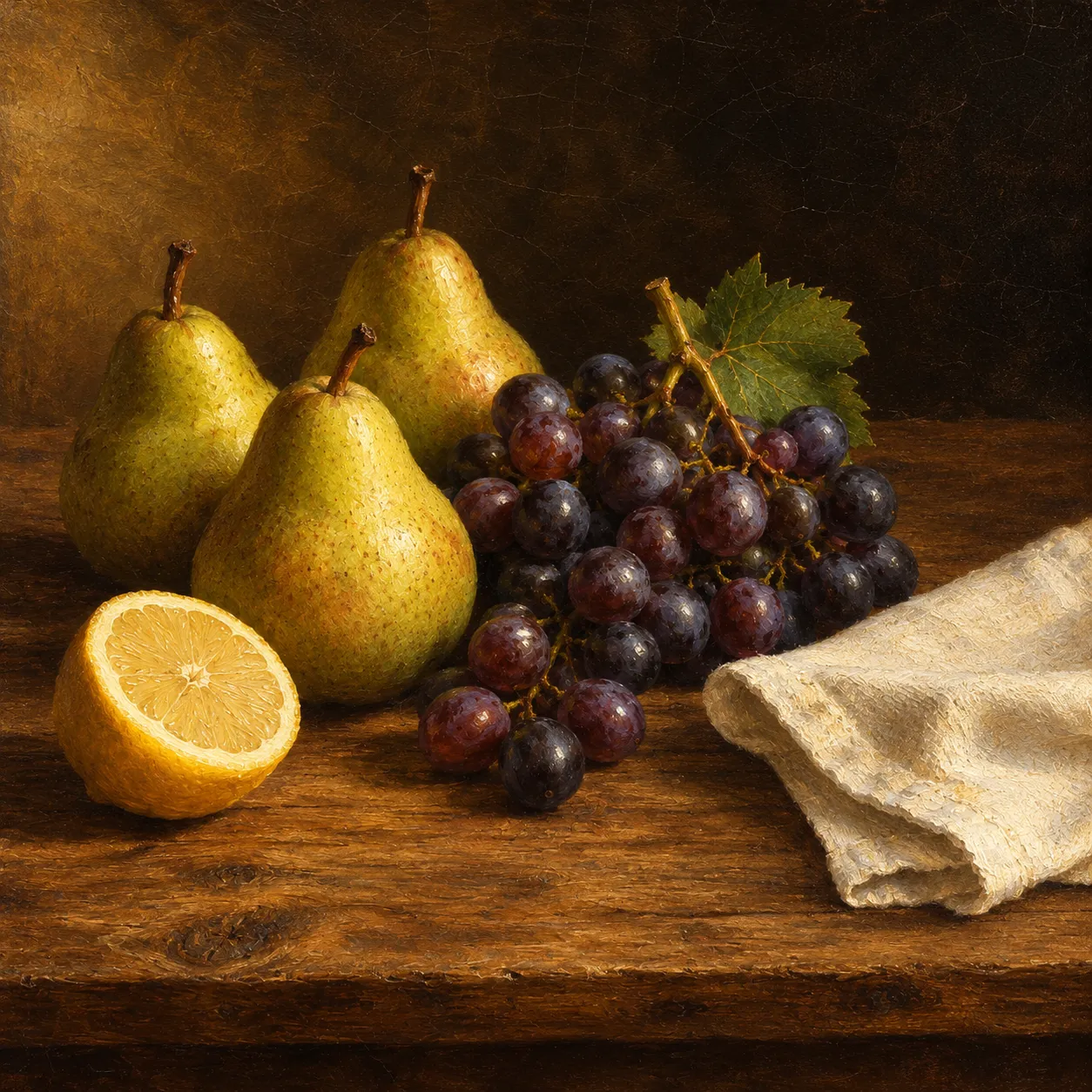
Flat daylight becomes deep shadow, warm side light and visible brushwork, like an old still-life canvas.
Illustrates the preset: Renaissance oil painting
Illustrations made for this page, not VEME output. Results depend on your photo, chosen look and, in Custom mode, the strength setting.
Preset groups on the Style tab
Those four looks are only a start. As of October 2026, the Style presets panel holds more than 30 looks in seven groups, plus a Hot row at the top. A few of them:
Realistic & Classic Art
6 looks- Renaissance oil painting
- Pencil sketch drawing
- Rough charcoal drawing
Anime & Japanese Inspired
5 looks- Japanese anime shading
- Cute moe anime style
- Traditional ukiyo-e print
Fantasy & Sci-Fi
3 looks- Mechanical steampunk vibe
- Futuristic cyberpunk look
- Scene engulfed in fire
Cartoon & Animated
6 looks- Cute storybook drawing
- Bold comic book style
Material & Sculpture
10 looks- Bronze metal sculpture
- Glass crafted statue
- Frozen ice sculpture
Crafted & Toy-like
5 looks- Clay stop-motion style
- Soft fabric texture
- Layered paper cutting
Retro & Stylized
1 look- Retro pixel art video
Not in the list?
Custom tab- Upload a style reference
- Adjust a custom reference strength
How to turn a photo into a painting with VEME
Choose an image to stylize
Upload a photo or choose one from your History.
Pick a preset or a reference
Use the Style tab for a preset, or the Custom tab to add your own style reference.
Adjust a custom reference
For a custom reference, adjust Style Strength from its default of 75%. Preset Style and Color modes use the selected look.
Press Transfer Style
Generate one image, compare it with the original, then adjust the settings if needed. Open the tool
What an AI style transfer run costs
- 31 image
- 62 images
- 93 images
- 124 images
Generation uses credits. Sign in and check the cost shown in the tool before running it; account offers and plan details are shown on the pricing page.
Generation uses credits. Sign in and check the cost shown in the tool before running it; account offers and plan details are shown on the pricing page.
The panel does not show output size, file type or upload limits, so check the first download before you plan a print.
AI style transfer FAQ
What is AI style transfer?
It redraws one image in the look of another: colors, brushwork, texture and light change, while the subject and layout stay where they were. On VEME the look comes from a preset or from a style reference you upload.
How do I turn a photo into a painting?
Upload the photo, open Style and choose a painting preset. For your own painting reference, use Custom and start near 75% strength.
Is AI style transfer free to try?
Generation uses credits. Sign in and check the cost shown in the tool before running it; account offers and plan details are shown on the pricing page.
Do I need to sign up?
You can open the tool and set up your photo and style in the browser. You may be asked to log in before the run starts.
Can I use my own style reference?
Yes. Switch to the Custom tab and upload the image whose look you want. Use pictures you made or have permission to use.
Will the person in my photo still look like themselves?
Strong looks such as anime or clay can change proportions. In Custom mode, lower Style Strength if likeness matters; compare results across separate runs.
Can I make a photo look like anime?
Yes. The Anime & Japanese Inspired group has five looks, including Japanese anime shading and Cute moe anime style.
Give one photo a whole new look
Upload a picture, choose a preset or a style reference, and let AI style transfer do the repainting.
Try style transfer for free