

AI Video Editor
Turn Raw Footage Into A Cut
veme is an AI video editor that trims, retimes, and cleans up your raw footage with simple text driven edits and export ready clips for every channel.
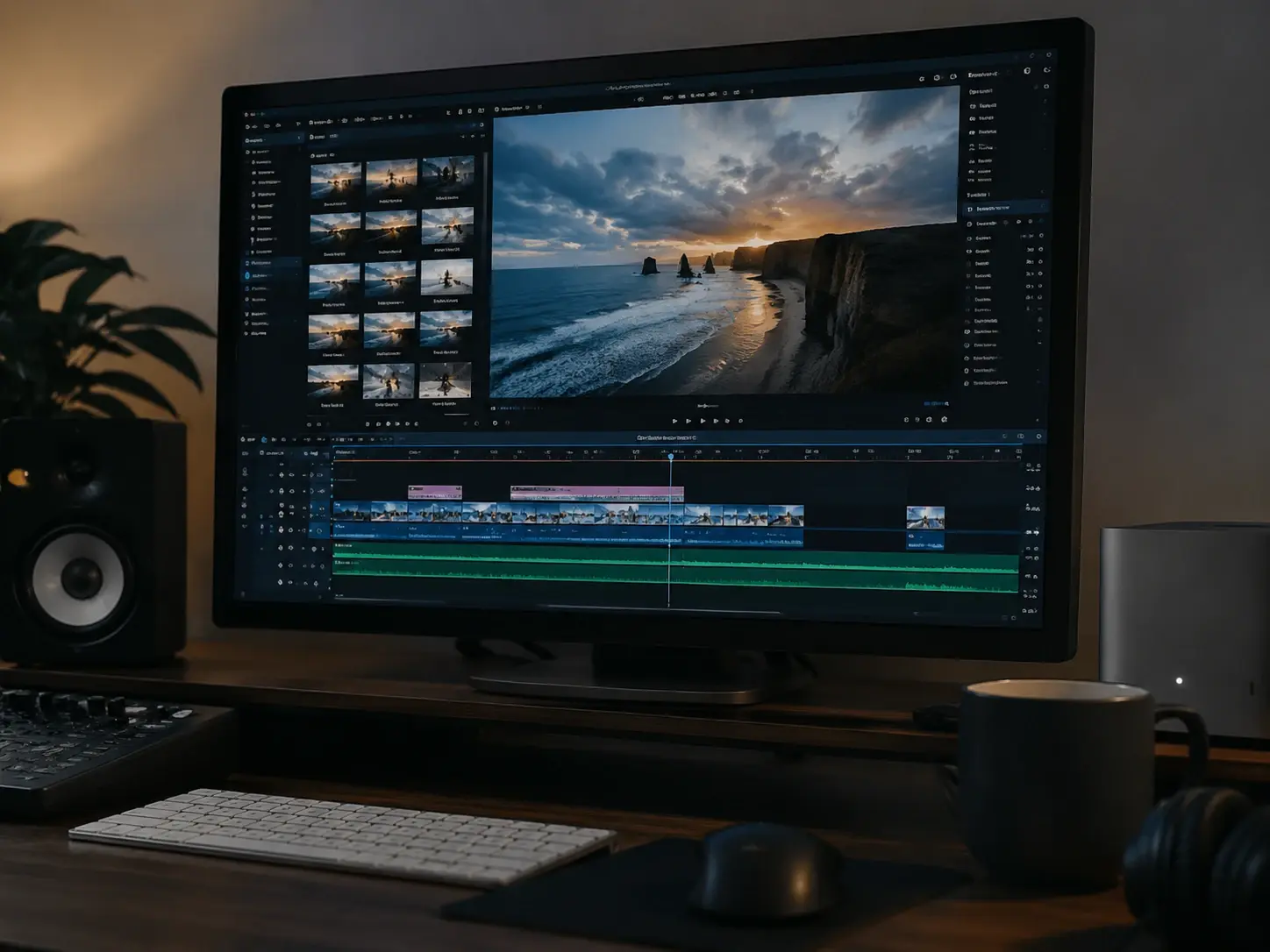
AI Video Editor
Turn Raw Footage Into A Cut
veme is an AI video editor that trims, retimes, and cleans up your raw footage with simple text driven edits and export ready clips for every channel.
What The AI Video Editor Does
Each capability keeps your cut precise, consistent, and ready to publish in veme.
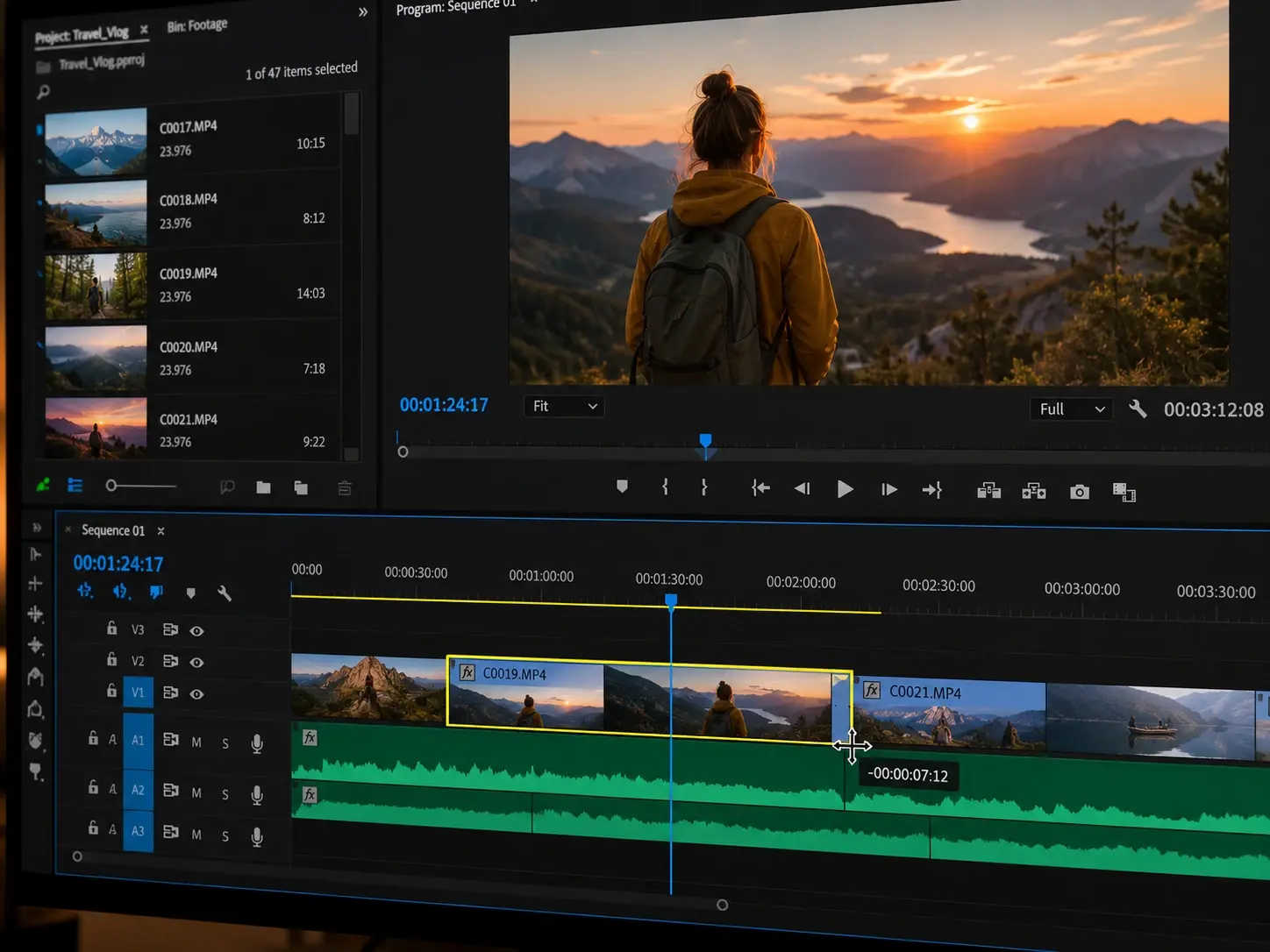
Frame Accurate Trim
The AI video editor reads your footage and flags the strongest segments for the cut. Drag the trim handles in the timeline and the video trimmer locks every edit to exact frame timestamps. Your sequence stays clean with no stray frames before export.
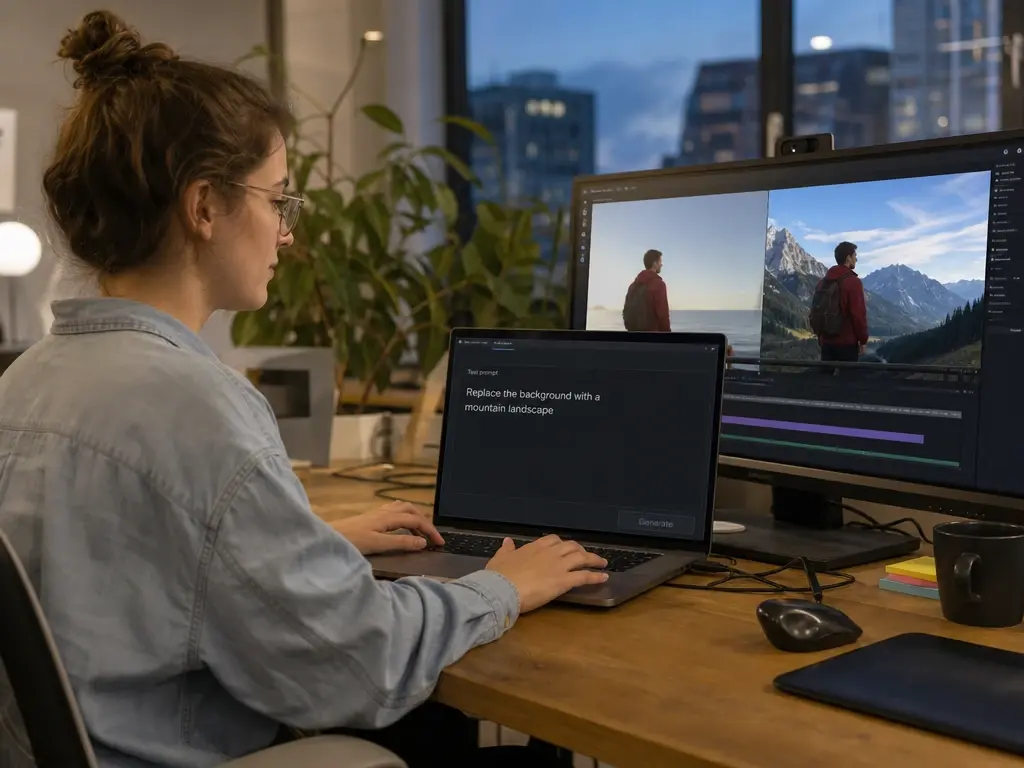
Text Driven Edits
Describe a change in plain words and the scene updates to match. The text to video ai replaces a background, deletes an object, or restyles the shot without a manual selection. Each edit lands in the preview so you confirm the result before it renders.
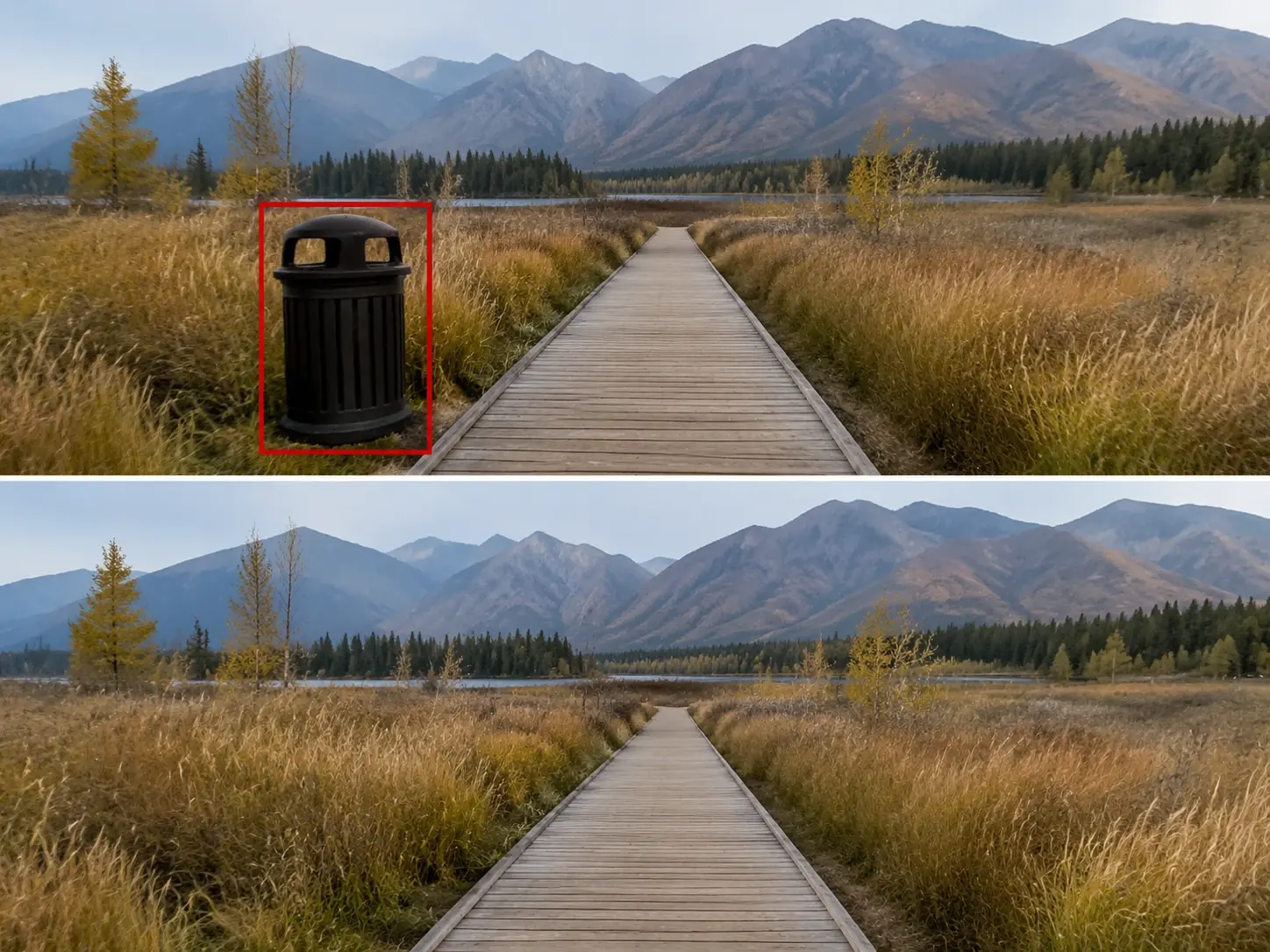
Smart Object Cleanup
Point at an unwanted item and the AI video editor erases it from every frame it appears in. The fill tracks motion so the patched area holds steady as the camera moves. The result reads like the object was never in the shot.
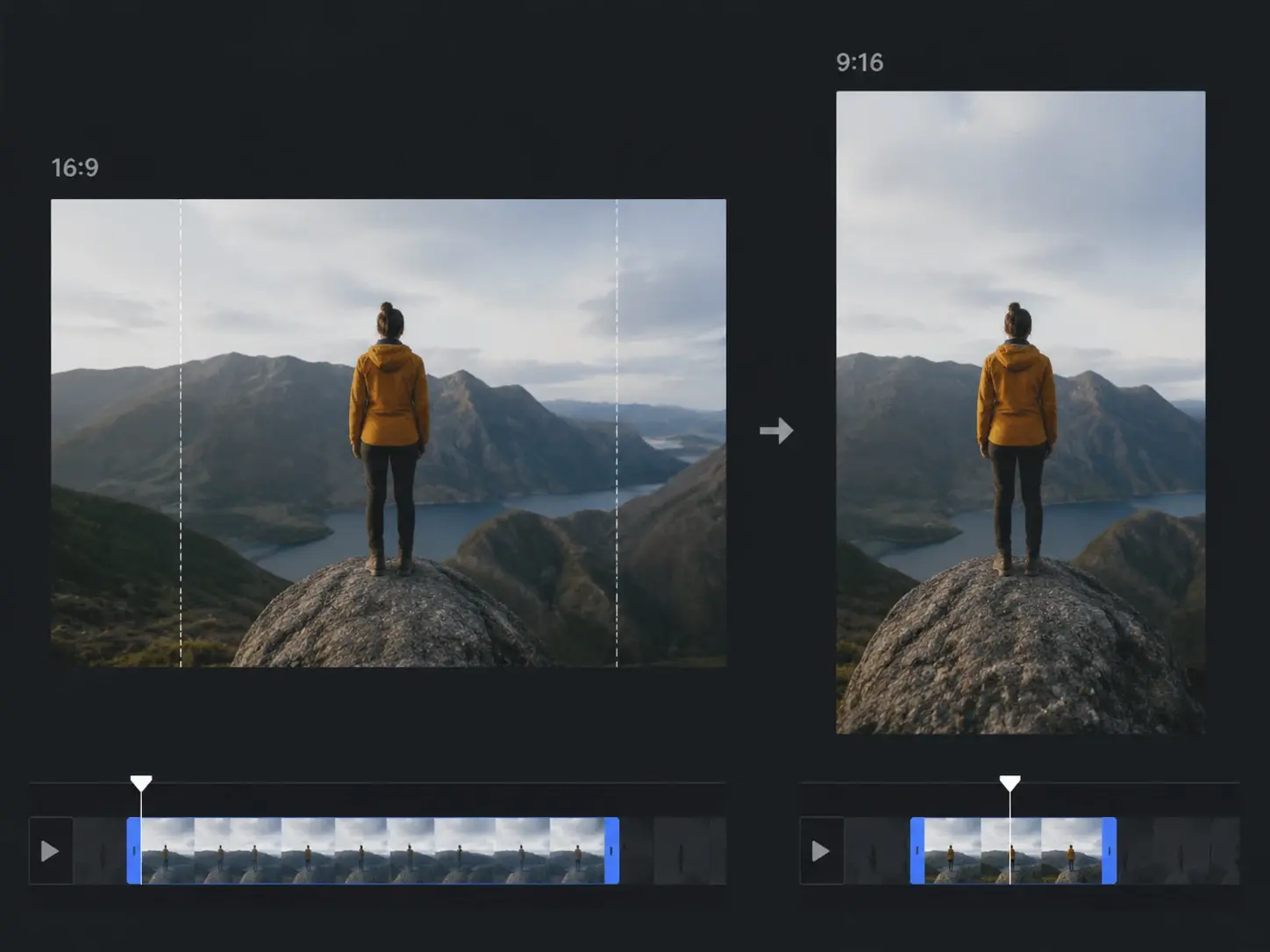
Vertical Reformat
Resize a wide cut into a vertical frame without losing the subject. The AI video editor tracks the action and keeps it centered as the aspect ratio changes. Export a vertical clip that fits short form feeds straight from the same timeline.
How The AI Video Editor Works
Three steps from raw footage to a finished cut you can publish.
Upload And Trim
Drop your clip into the timeline and the AI video editor marks the strong moments for you. Use the video trimmer to cut dead frames, drag the handles, and keep only the takes that land. The first pass is ready before you touch a single keyframe.
Edit By Typing
Type a short instruction and the tool applies the change to your scene. The text to video ai swaps a background, removes an object, or shifts the look without a manual mask. Confirm each edit in the preview and the timeline updates in place.
Preview And Export
Watch the cut in the preview player and check pacing, color, and motion across every frame. Adjust the duration or regenerate one section without restarting the render. Export at your target resolution, ready to post or hand to a reviewer.
AI Video Editor Questions

Turn Raw Footage Into A Cut
Open the AI video editor in veme, upload your clip, trim and edit by typing, and export a finished cut ready for every channel.