

ai video generator from image
VideoAI reads the source image you upload alongside the prompt you write, then outputs an MP4 with directed motion and consistent subject detail. Review the generated clip before you save. One clear creative input pair, one reviewable result.
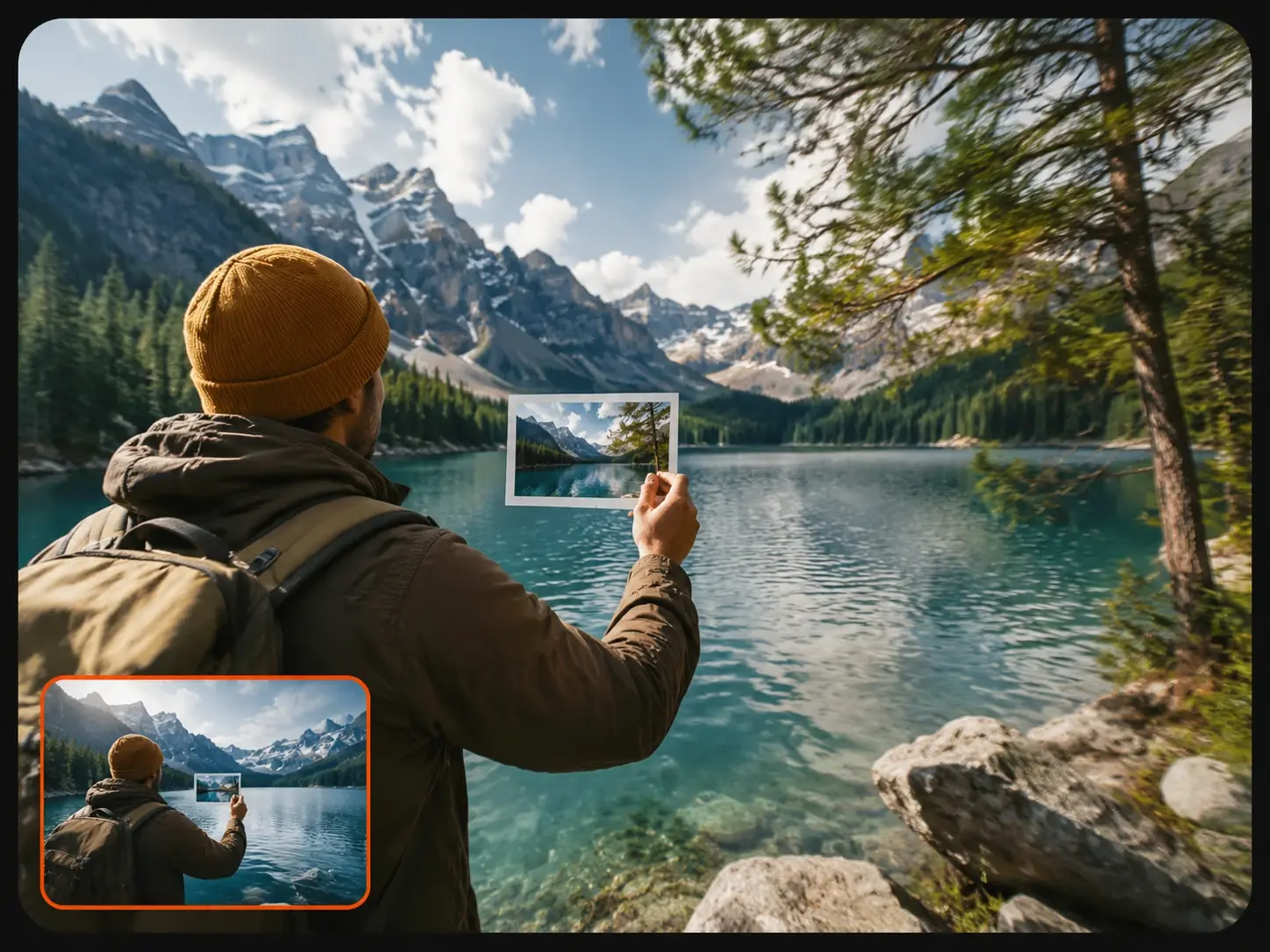
AI Video Generator from Image: Four Output Controls
Each feature shapes something specific in the generated clip. The goal is a reviewable output that matches what the source image and your prompt described.
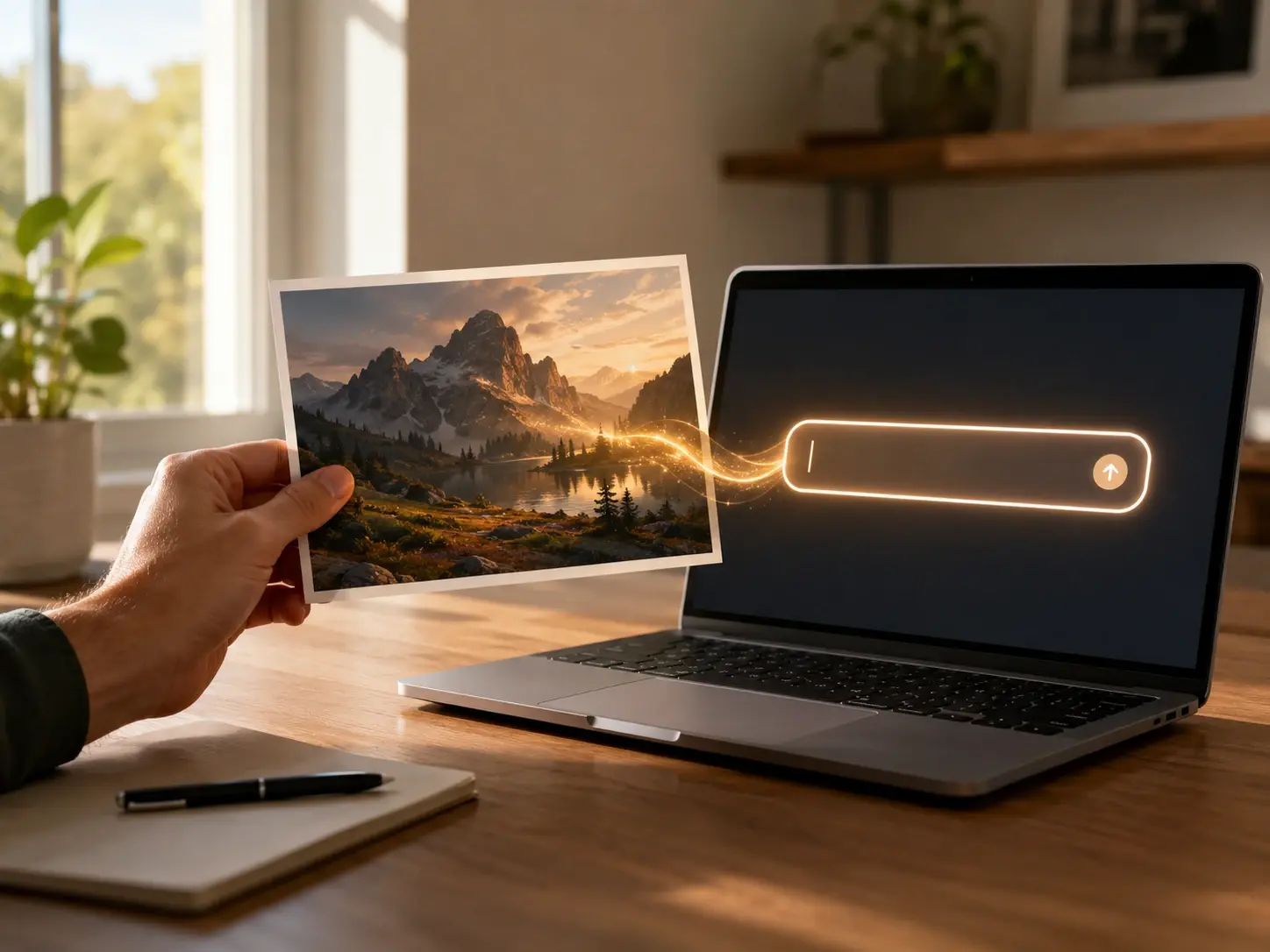
Prompt and Image Pairing
VEME reads the source image and the motion prompt as a combined input, not two separate signals. The model maps prompt instructions onto the subject and scene already present in the uploaded file, so the video from image ai reflects both the visual starting point and your written direction. Works best when the prompt names elements that are visible in the image rather than introducing objects not present in the source.
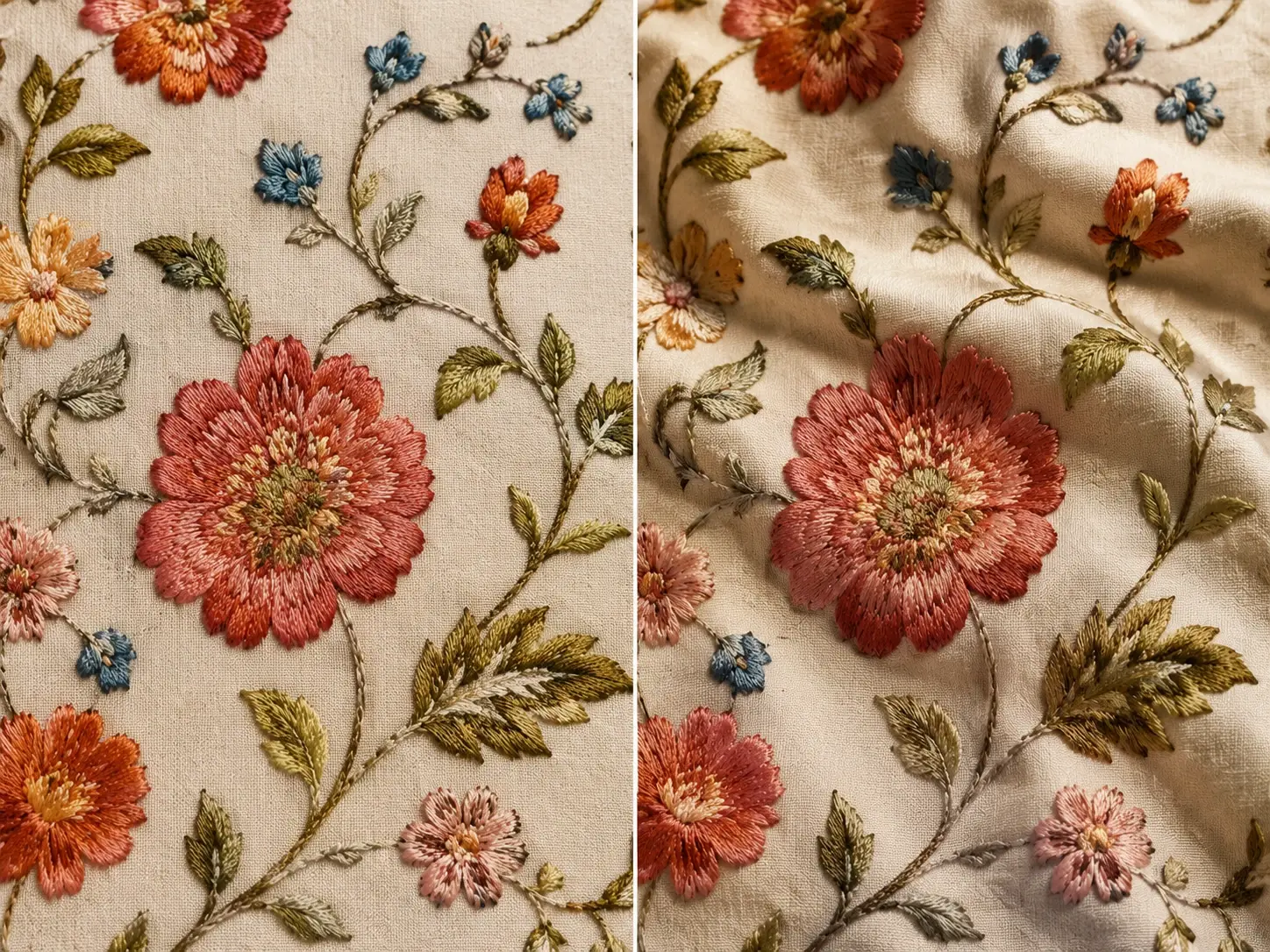
Source Detail Retention
When you animate a picture with fine texture, a complex illustrated background, or a detailed subject, VEME tracks those details through each generated frame to reduce subject drift. The output clip holds the color relationships and edge definition from the source image across the duration of the motion. Detail retention is strongest when the source file is sharp and the subject occupies a clear area with minimal occlusion.
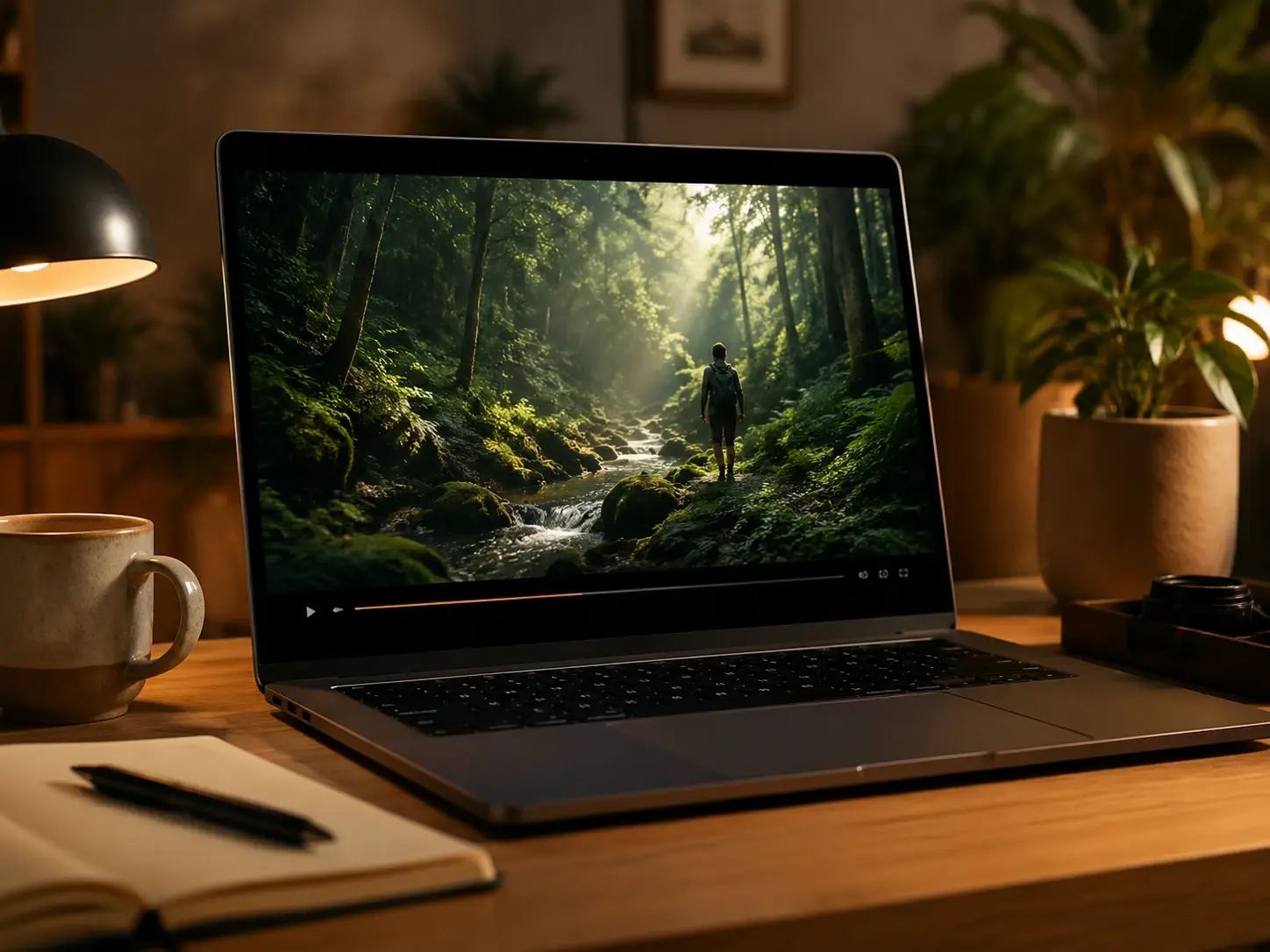
Clip Quality Preview
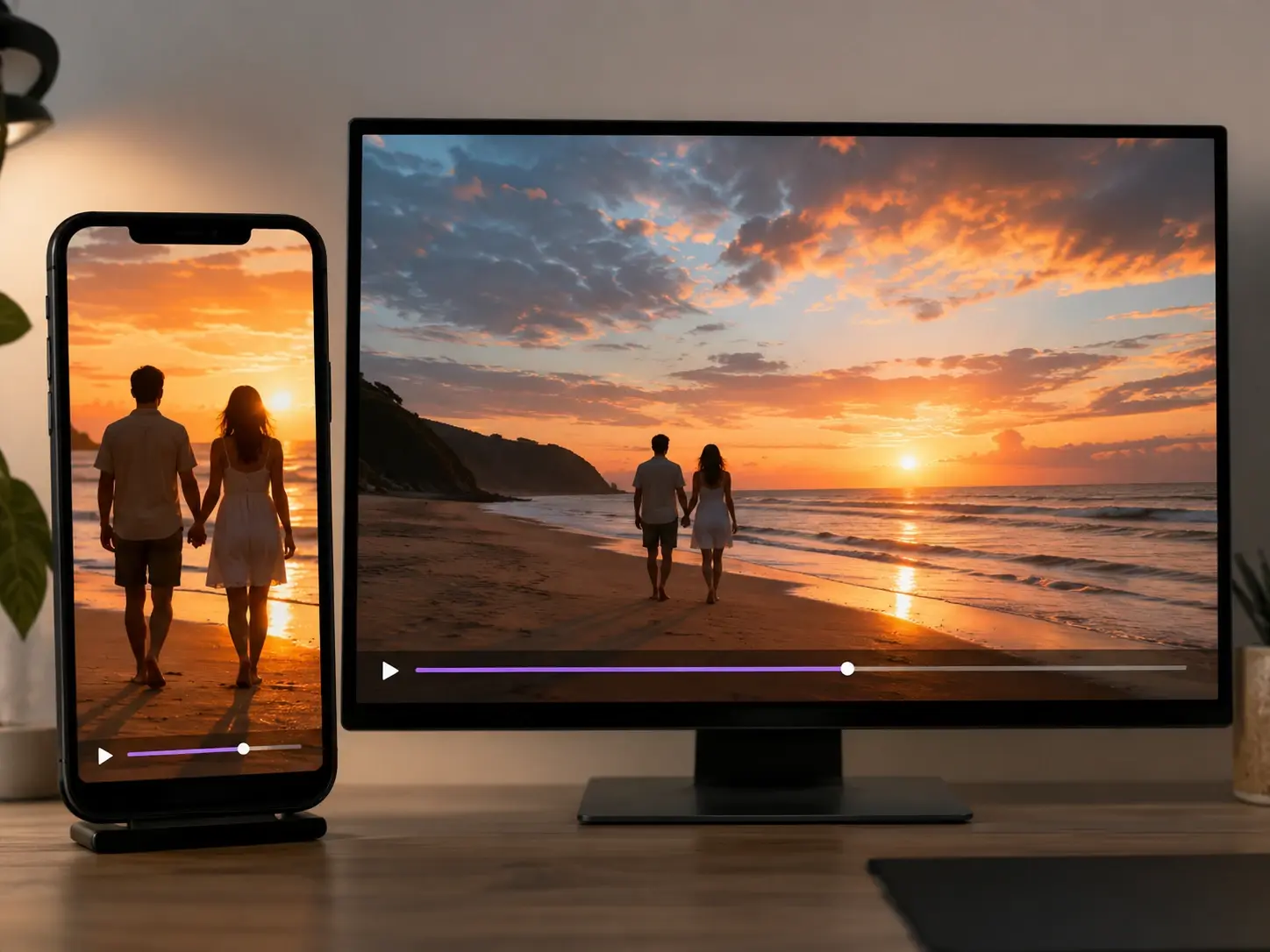
Before the final MP4 is produced, VEME plays the full generated clip in a preview player at output resolution. Use the preview to check subject consistency, prompt adherence, and whether any frame shows distortion at the scene edge. If the result does not match your prompt direction, adjust the prompt text and regenerate without losing the source image selection.
Output Ratio from Source
The output aspect ratio follows the proportions of the uploaded source image, so a vertical photo produces a vertical video clip and a horizontal photo produces a horizontal one. This keeps the subject framing consistent between the static input and the animated output without manual cropping. If your target platform requires a specific ratio, verify the source image matches that format before uploading.
How the AI Video Generator from Image Works
Three steps take you from a static source file to a reviewable video clip. Each step is a creative decision, not just a button press.
Select the Reference Frame
Add a JPG or PNG that contains the subject and scene you want to animate. The ai video generator from image reads the composition, the subject position, and the depth layers in your file before anything moves. A clearly framed subject with surrounding space gives the model the most to work with.
Pair Prompt With Visible Detail
Describe the action you want: what the subject does, which direction the camera moves, and how the atmosphere shifts. The ai video generator from image and prompt workflow uses both inputs together, so a prompt referencing what is already visible in the image tends to produce more accurate motion. When your subject is clearly defined in the source, a short specific prompt outperforms a long general one.
Review the Clip and Export
VEME renders the generated clip and plays it in a preview player before producing the final file. Check that subject detail holds through the motion, that the prompt direction is readable in the output, and that no edge distortion appeared at the frame boundary. If the result is usable, export the MP4 as your video from image ai output. Use the ai video generator from image preview before export, especially for ai video from picture workflows.
Common Questions About the AI Video Generator from Image
Try the AI Video Generator from Image on Your Own Source File
Upload a photo or illustration, write a motion prompt, and review the generated clip before you export. The ai video generator from image workflow keeps source detail intact and gives you a reviewable result before anything is saved.
Get Started