
Free Mystification Video Effect
Make your subject slowly fade into mystery with a Mystification Effect. Upload a photo or clip and watch the character dissolve into smoke and soft motion blur, creating a dramatic disappearing scene in seconds.
Create Mystification Effect Videos Fast
Turn prompts and optional frames into a Mystification effect clip with smoke dissolve motion around the subject. Veme lets you tune model, duration, and clarity so each result feels controlled, cinematic, and usable.
Who Uses Mystification Effect
Mystification effect fits teams that want a strong character exit without heavy manual compositing or particle work. It works well in publishing cycles where smoke dissolve motion must stay cinematic, readable, and easy to repeat.
Creators can use a Mystification effect to turn a pose change or exit into a memorable beat. The smoke driven finish feels premium on short videos while keeping the setup light enough for daily publishing.
Solo editors get a smoke dissolve workflow that looks more complex than it is to build. They can test prompt changes, frame choices, and output settings quickly without turning client revision into a manual task.

Marketing teams can repeat a smoke dissolve across launch assets, teasers, and paid variations with less style drift. That makes smoke dissolve motion easier to approve when multiple editors, rounds, and campaign formats are involved.
How Mystification Effect Works
The Mystification effect workflow stays short enough for quick testing but structured enough for repeatable output. You decide the frame guidance, the smoke behavior, and the final render settings before the model generates motion.
Step 1
Add Frames
Upload a start frame, an end frame, or both when the shot needs a precise landing. Clear frame guidance helps the smoke dissolve feel connected to the subject instead of feeling detached or random.
Step 2
Write Motion
Describe how the subject should break apart, drift, and clear the frame so the motion reads on screen. Strong prompt details make the dissolve style easier to steer across realism, drama, and camera energy.
Step 3
Pick Output
Choose the model, duration, and clarity that match where the video will be published. This keeps preview clips fast for testing while still leaving room for cleaner final exports when the shot is approved.
Control the Mystification Effect
These controls keep Mystification effect output flexible enough for experiments and stable enough for real delivery. Each feature reduces manual cleanup while making the motion easier to direct, compare, and reuse.
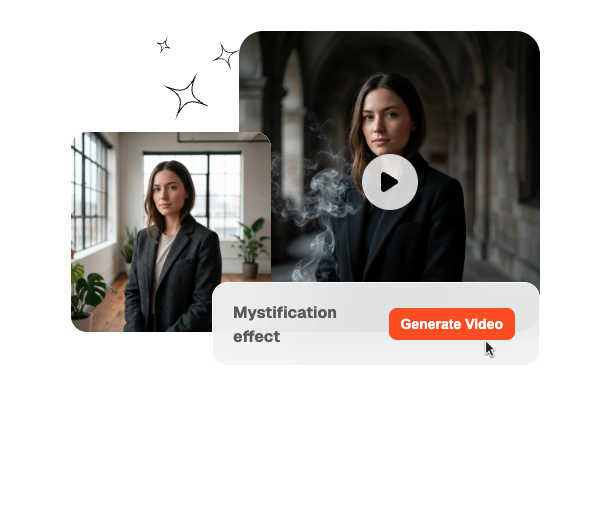
Frame Input Control
You can guide a Mystification effect with only a start frame, only an end frame, or both. That gives the move enough structure for exact landings while still leaving space for prompt driven motion changes.
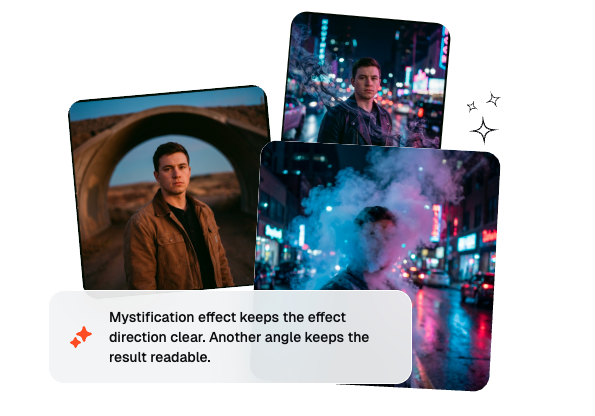
Prompted Smoke Motion
The Mystification effect responds to prompt details like dissolve density, drift speed, breakup direction, and scene mood. That means creators can shape the smoke behavior directly instead of settling for one locked transition preset.
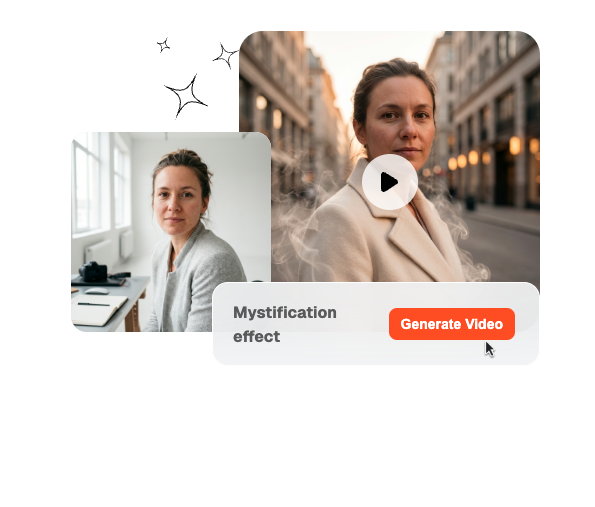
Output Setting Control
Model choice, clip duration, and quality settings let each shot match the publishing goal more closely. Teams can move from quick tests to cleaner finals without rebuilding the same motion idea from scratch.
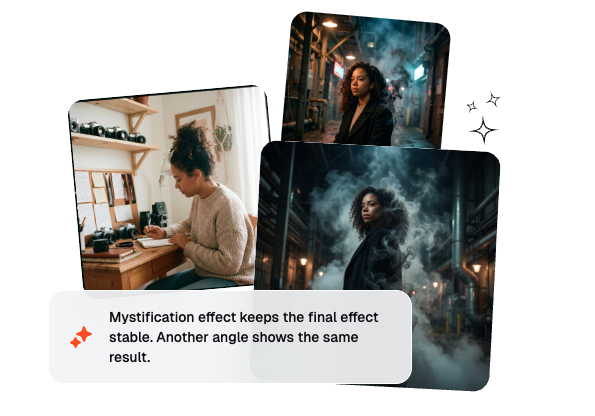
Fast Creative Iteration
Veme keeps the workflow light enough for fast comparisons across several prompt and frame combinations. That helps creators review options sooner, lock a direction faster, and keep production moving without extra pipeline overhead.
Mystification Effect FAQ
What is a Mystification effect in AI video?
A Mystification effect turns the subject into smoke so the body seems to dissolve out of the shot. The move can feel eerie, cinematic, or dreamlike depending on your prompt. It works best when the exit timing and motion path stay readable.
Can I make a Mystification video from only a prompt?
Yes, you can generate a Mystification video from a prompt, then add frames when you need a tighter landing. Prompt-only tests are useful for concepting speed and mood first. Frame guidance becomes more important when the final shot must match a precise scene.
How is it different from a Disintegration effect?
A Disintegration effect often breaks the body into particles or fragments, while a Mystification effect leans into smoke, haze, and drifting dissolve motion. A Character disintegration effect can feel harsher and more destructive. A Smoke Dissolve Effect usually reads softer, moodier, and more cinematic.
Does it work for AI transition workflows?
If you are testing an AI transition, start with one clear subject action and one simple background. That makes an AI video Transition generator easier to steer before you increase motion complexity. Even an AI Transition free test becomes more useful when the entry and exit beats are obvious.
How do I improve a smoke dissolve result?
For a stronger Smoke Dissolve Animation Effect, describe the breakup density, drift speed, and how long the smoke should linger. Smoke Simulation details matter because they shape whether the result feels magical, eerie, or clean. If you want more stylization, mention Mystification Blur Motion or Mystification Blur Art in the prompt.
Start Mystification Effect Today
Create a smoke dissolve clip with controlled output settings and faster iteration from one workflow.